Google Forms will not record anyone's email address unless you tell it to. The setting ships switched off, which catches out plenty of people who assumed every response arrived with a name attached.
Switching it on takes about four seconds. Choosing between the two collection modes is the part worth a moment's thought, because one of them makes a Google account mandatory for every single respondent.
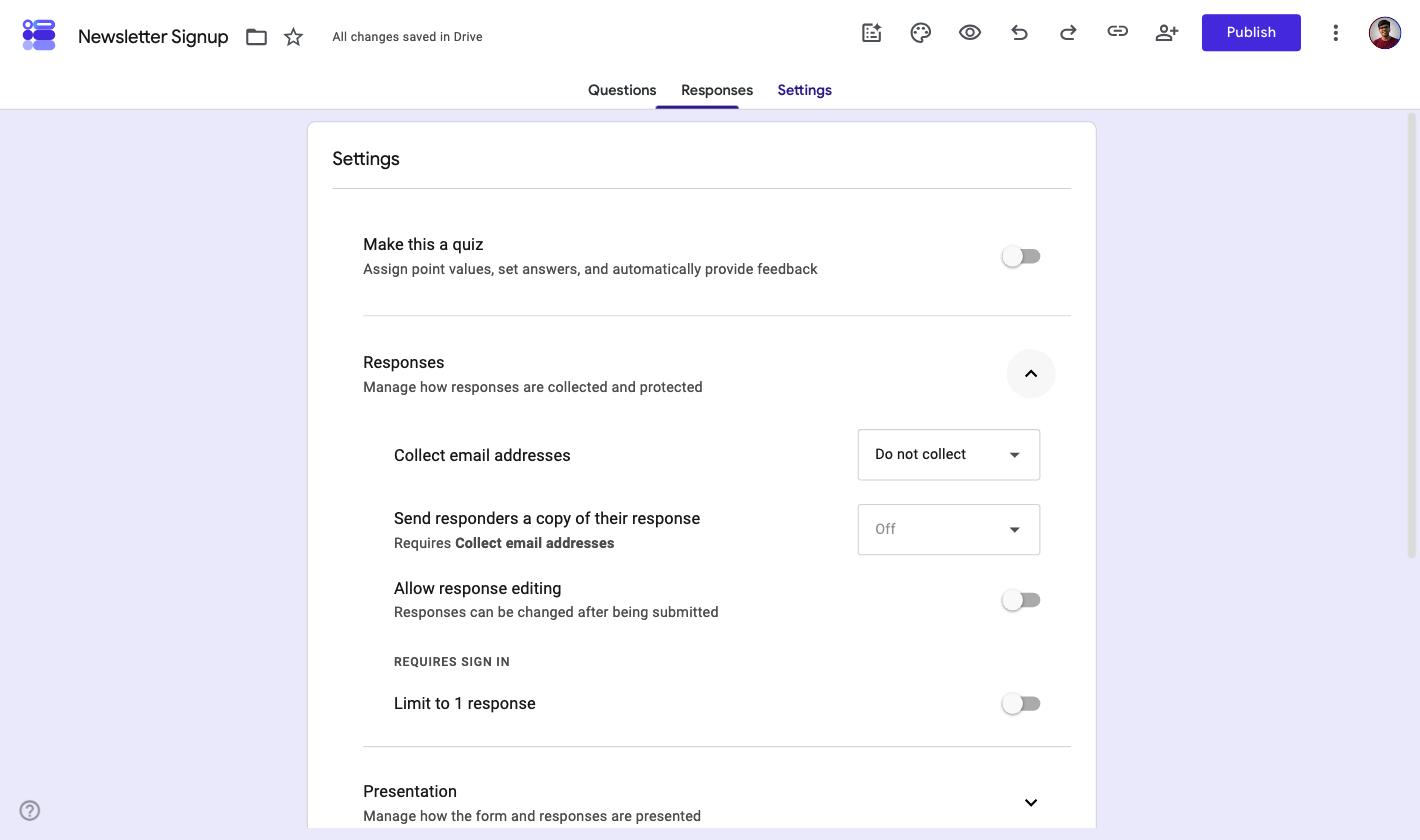
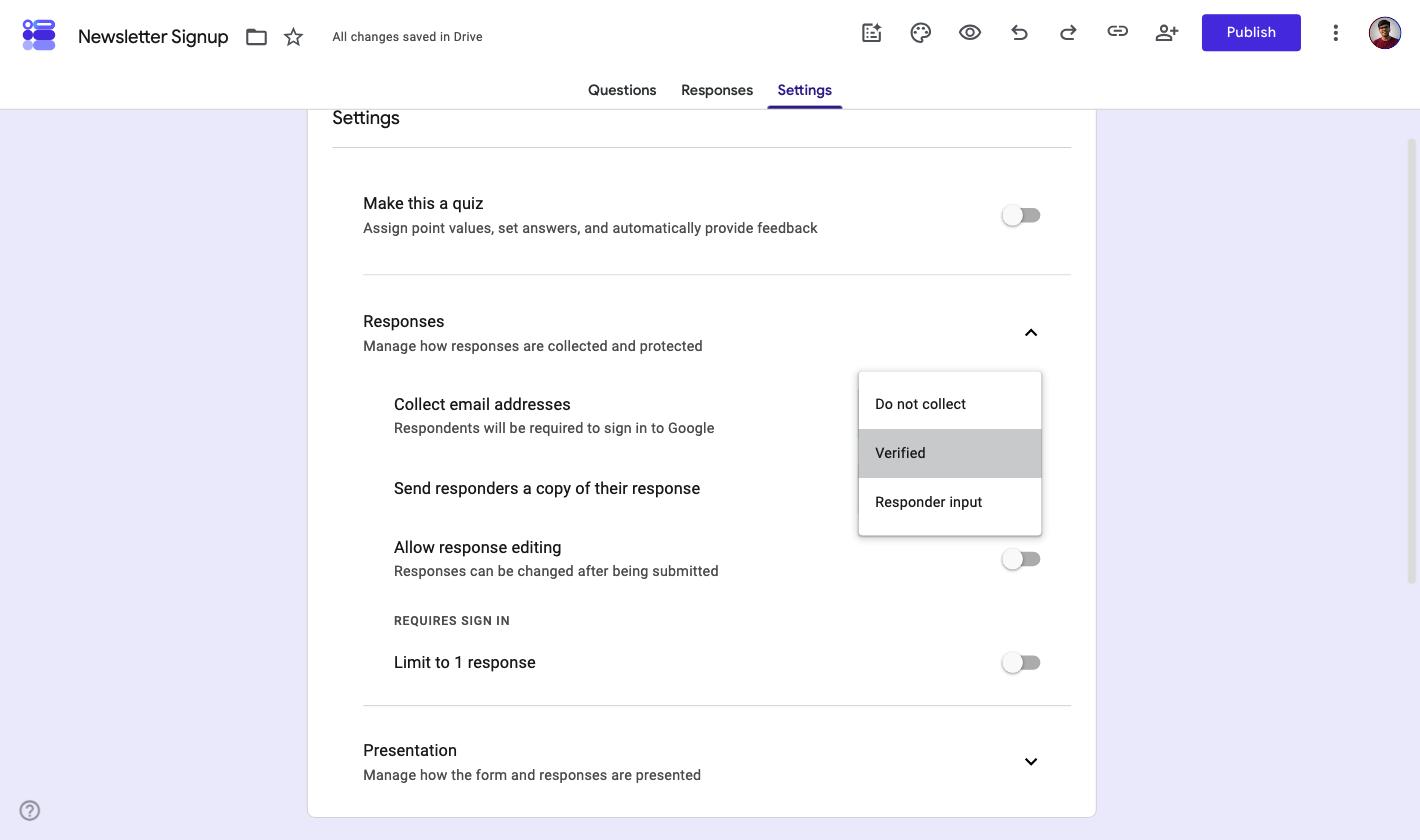
The control sits under Settings, in the Responses section. Verified takes the address from the account someone is signed in with, and forces that sign-in. Responder input lets them type it, with no account needed and no check that it is real.
Where the setting lives
The email option is not in the question editor, which is where most people go looking. It sits in form-level settings, one section down.
- Click Settings in the top bar, beside Questions and Responses.
- Expand the Responses section.
- Open the Collect email addresses dropdown and pick a mode.
Fresh out of the box it reads Do not collect. Look at the row directly beneath it: Send responders a copy of their response is greyed out, and Google spells out why with Requires Collect email addresses.
There is no save button. Your choice applies the moment you make it, and the form itself picks up a line confirming what changed.
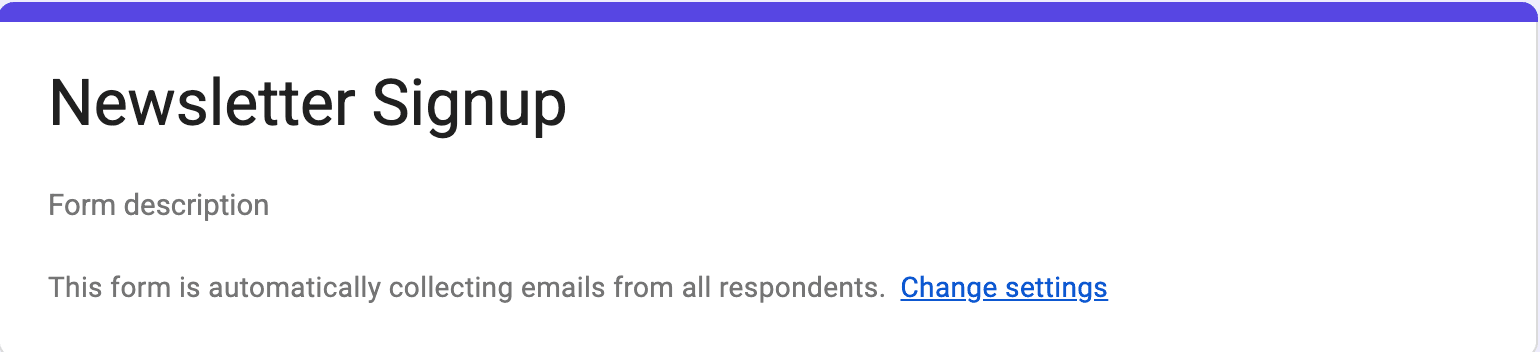
That notice appears in the editor only. It is the quickest way to confirm collection is on without opening Settings a second time.
Verified or Responder input: which one should you pick?
Both modes put an address in your response sheet. What separates them is who vouches for that address.
| Verified | Responder input | |
|---|---|---|
| Where the address comes from | The signed-in Google account | Typed by the respondent |
| Google account required | Yes | No |
| Can it be mistyped | No | Yes |
| Can someone enter an address that is not theirs | No | Yes |
| Suits a public audience | Only if everyone has a Google account | Yes |
Choose Verified and Google states the cost right under the dropdown: Respondents will be required to sign in to Google.
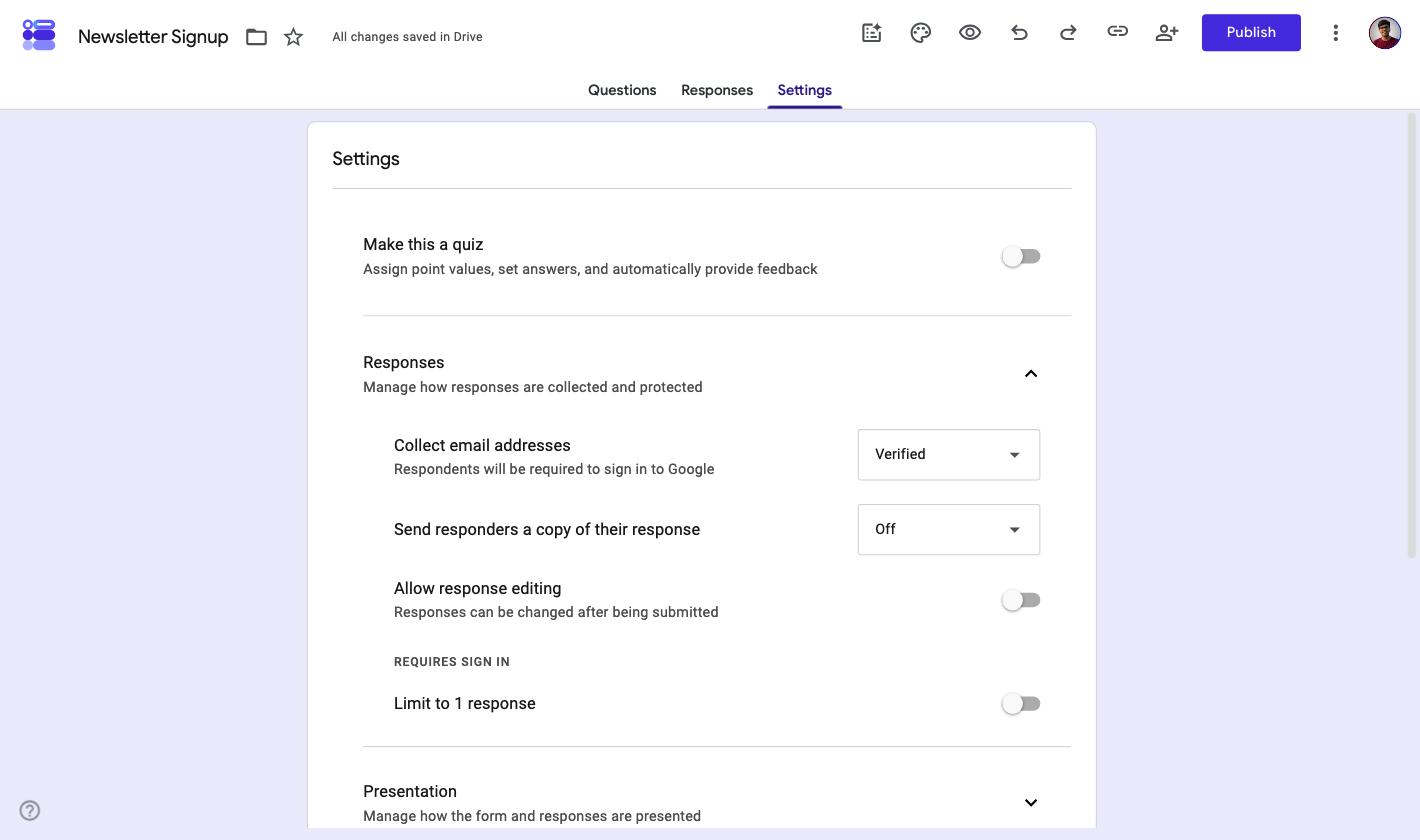
That one line is the entire trade-off. Inside a school or a company already on Google Workspace, it buys you accurate addresses for nothing.
On a public signup form it becomes a wall. Anyone without a Google account, or signed into the wrong one, stops there and never submits.
Sign-in requirements ripple further than this one setting, and how form access works in Google Forms covers the rest of them.
How to stop collecting email addresses
Set the same dropdown back to Do not collect. Responses already in your sheet keep the addresses they captured, so turning it off does not reach backwards.
That detail matters if you promised anonymity partway through a survey.
The setting alone will not get you there either, since a name or an employee ID question identifies someone just as well. Our guide to making a Google Form anonymous covers the questions you need to strip out.
Can people see your email address on Google Forms?
Respondents cannot see each other's addresses. Response data is visible to people with edit access to the form or to the linked spreadsheet, and to nobody else.
Your own address is a separate question. Respondents do not see the form owner's email while filling anything in, but it does show at the top when you preview your own form, which is what convinces people it is public.
There is no toggle that collects an address and then hides it from your responses. Collection and visibility are the same switch, so if you need the submission without the identity, do not collect the address at all.
What you can control is who else gets to read it. Response data inherits the sharing permissions of the form and its spreadsheet, so the fix for exposure is access control rather than a hide button.
Can you use the responses as a mailing list?
Yes, and it is the most common reason people turn the setting on in the first place.
Addresses arrive in an Email address column alongside every other answer, ready to export. If responses are not reaching a spreadsheet yet, connecting Google Forms to Google Sheets sorts that out.
Switching collection on also frees up the row underneath it, where you can send each respondent a receipt of what they submitted.
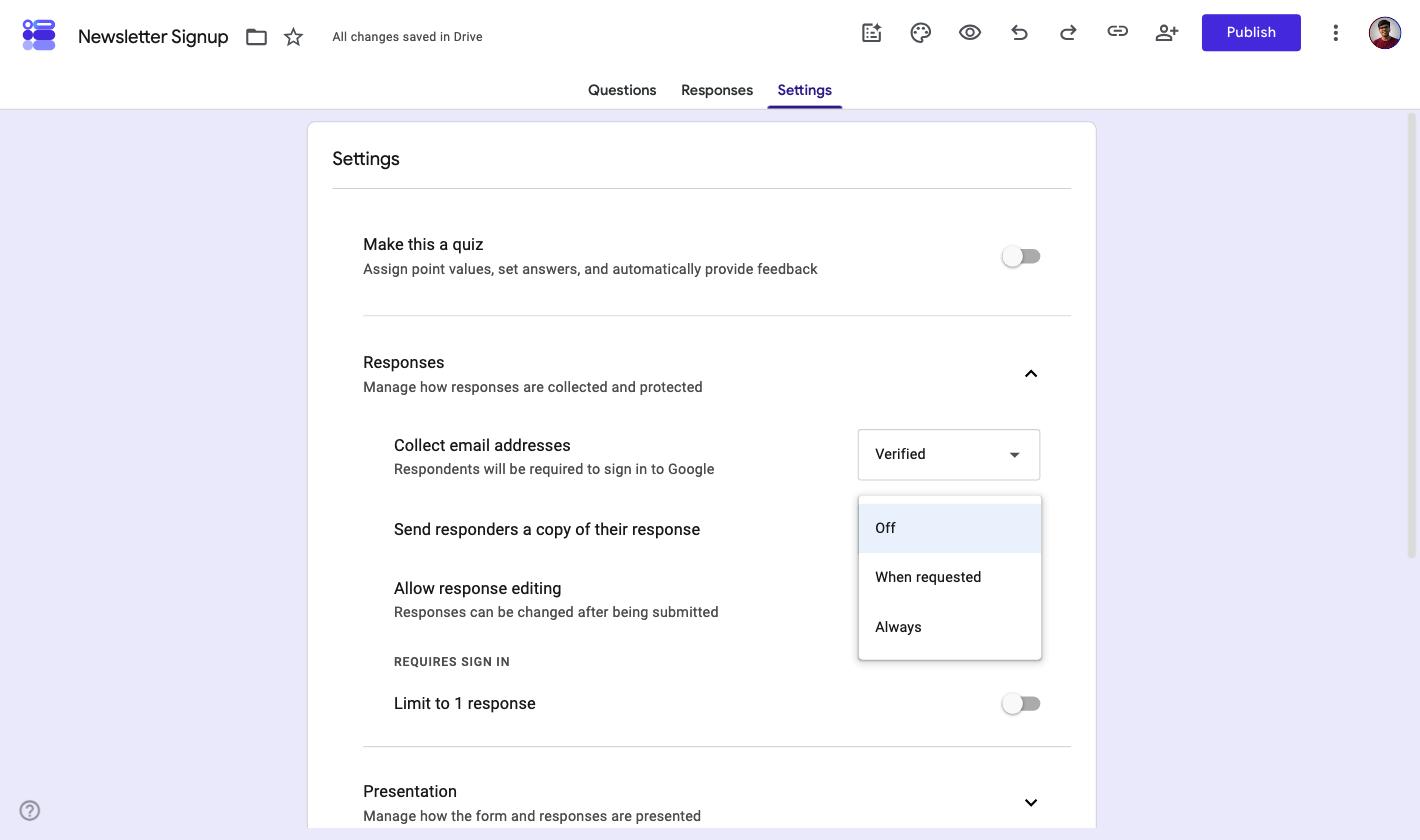
- When requested adds a checkbox to the form so respondents opt in to their own copy.
- Always sends the receipt on every submission, which is the closest Google Forms gets to a confirmation step.
Two cautions before you treat any of this as a subscriber list. Google Forms gives you no consent checkbox and no unsubscribe link, so an explicit opt-in question is on you to add, worded specifically enough that people know what they agreed to.
If a mailing list is the actual goal, a purpose-built newsletter signup form starts you closer than a repurposed survey.
Want addresses you can actually email? Formester sends a one-time code to any address and only counts the submission once it checks out, with no Google account in the way.
Where email collection in Google Forms runs out
Turning the setting on gets you a column of text. It does not get you a column of working addresses, and the distance between those two things is where most collected lists quietly fall apart.
- A typo sails straight through. Responder input accepts anything shaped like an email, so jhon@gmial.com lands in your sheet looking perfectly respectable.
- Nothing proves ownership. Someone can type your address, a colleague's, or an invented one, and the submission counts all the same.
- Deduplication needs sign-in. The Limit to 1 response toggle sits under a heading that reads REQUIRES SIGN IN, so stopping repeat entries means making Verified compulsory.
Verified solves the first two problems by demanding a Google account, which is the trade the whole feature revolves around. Accuracy or reach, and you only get to pick one.
Junk entries are a related headache once a form is public, and form spam protection deals with the bot side of it.
How to collect verified emails without a Google account
Formester handles this on the field rather than the form, and that is precisely why no Google account is involved. Verification attaches to the email question itself.
Click the email field in the builder and open the Advanced tab.
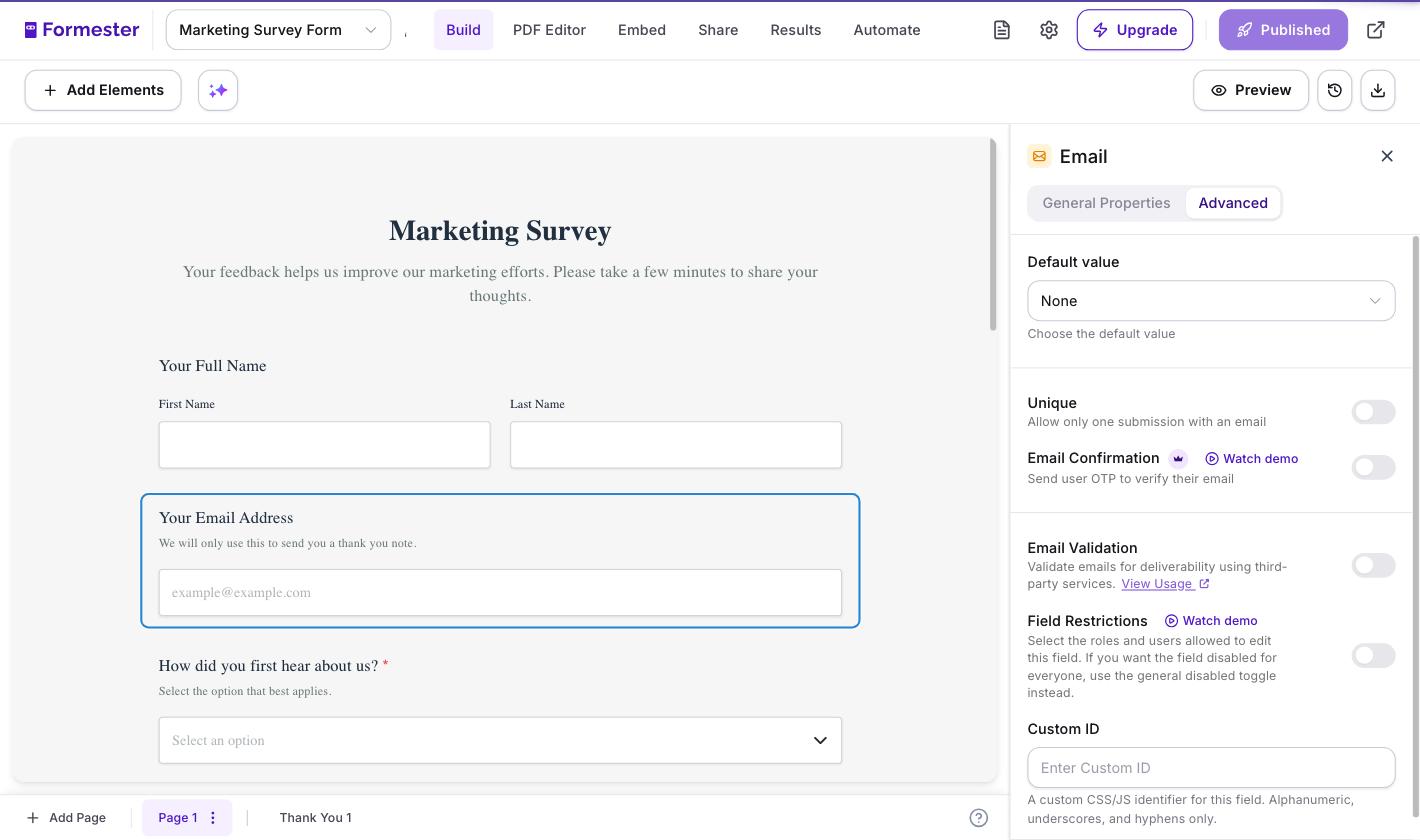
Three separate toggles live there, each aimed at a different one of the gaps above.
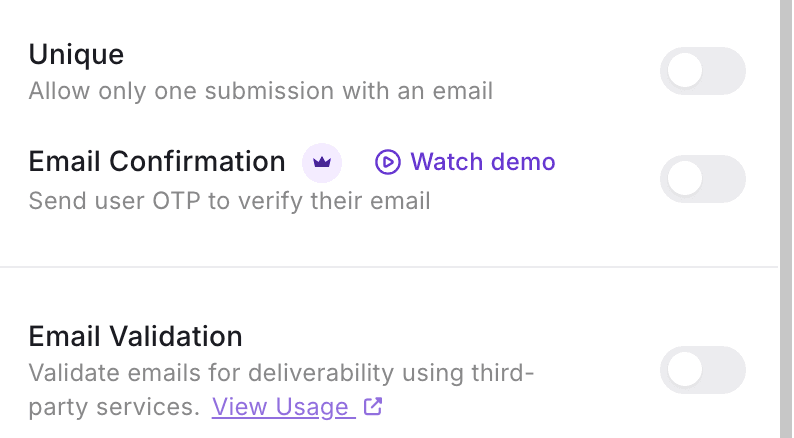
- Email Confirmation emails a one-time code and only accepts the submission once the code matches. This is the ownership check Google Forms has no equivalent for without sign-in.
- Email Validation tests deliverability while the respondent is still on the form, so dead domains get caught before they reach your results.
- Unique allows one submission per address, and it does that without asking anyone to log in anywhere.
The code arrives by email and gets typed back into the form, so nobody leaves the page to hunt down a confirmation link. Our email verification feature page walks through the full flow.
One honest caveat. Email Verification is a Personal plan feature at $13 a month, or $12 a month billed annually, so it is not the free answer.
If everyone filling in your form already sits on the same Google Workspace domain, Verified in Google Forms does an equivalent job at no cost. Use that instead.
Paying for verification earns its keep when your audience is the general public, where a Google account cannot be assumed.
Frequently asked questions
Related reading
More on getting clean, usable data out of a form.
- How to build spam-free contact forms - keeping bots and throwaway addresses out of a public form.
- Google Forms tips and tricks - settings worth knowing beyond the response section.
- Mailing list contact form template - a signup form with consent wording already in place.
- Why teams move off Google Forms - an honest look at where it stops being the right tool.