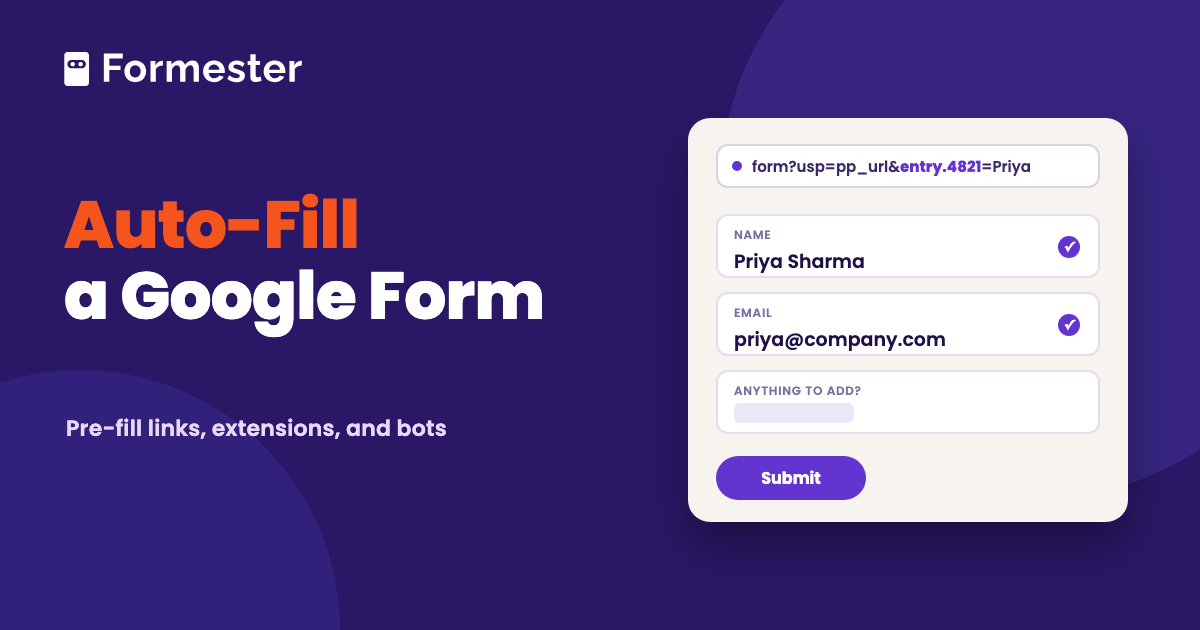
A Google Form auto filler can mean two things. It can be a link with answers already filled in, or a browser tool that fills in your saved details. Which one you need depends on whether you made the form or you are filling it out. If you made the form, use the link. If someone sent you the form, use the tool. This guide covers both, plus the scripts people use to submit forms automatically.
Quick answer
- You made the form: use the built-in Pre-fill form option. It gives you a link with your chosen answers already filled in.
- You were sent the form: a Chrome extension such as Google Forms Auto Filler or QuickFill can fill in details you saved.
- You want a bot: scripts can submit forms automatically, but they can break when the form changes. Using one on a form you do not own is against Google's terms.
What does auto filler mean for a Google Form?
If you own the form, auto filling means sending it with some answers already filled in. You may already know the person's name, email, or booking reference, so you put those details in the link and they only fill in what you do not know. Google Forms does this with a pre-filled link, and that is usually what people mean when they search for a Google Forms auto filler.
If you are filling out someone else's form, auto filling means a browser extension that stores your details once and types them into forms for you. That saves you from entering your name and email again and again. The extension can only fill details it already knows, so it cannot answer the form's actual questions.
Read the section that matches your situation. The bot question near the end applies to both.
How to send a Google Form with answers already filled in
Pre-filling saves people from typing information you already have. It also helps keep those answers consistent. Google Forms has this built in, so you do not need to install anything.
-
Open the form in the editor
Go to forms.google.com and open the form you want to send. You need edit access, not just the link people use to submit responses.
-
Choose Pre-fill form
Click the three-dot More menu in the top right and select Pre-fill form. Google Forms opens a version of the form where anything you type becomes a starting answer.
-
Type the answers you want filled in
Fill only the fields you want to pre-fill and leave the rest empty. For multiple choice and dropdown questions, use the exact option text. The link matches the answer word for word.
-
Get the link
Click Get link at the bottom, then copy the link Google shows at the top. Anyone who opens it will see your answers already filled in. You can send it by email, add it to a calendar invite, or paste it into a message.
Respondents can still change any pre-filled answer. The link only sets a starting value. It does not lock the field.
How do the entry IDs in a pre-filled link work?
Open the link you copied and look at the end of the URL. Google adds something like this:
?usp=pp_url&entry.1234567890=Priya+Sharma&entry.987654321=Marketing
Each entry. number is the ID for a question. The text after the equals sign is the answer. The ID stays the same as long as the question exists, so you can change the answers by hand without opening the form editor again.
Spaces become a plus sign or %20. Other special characters need URL encoding. Otherwise, the answer may not show up correctly.
Make one link per person from a Google Sheet
Creating a link for each person gets tedious pretty quickly. If their details are already in a spreadsheet, you can create the links with a formula.
- Generate one pre-filled link the normal way and paste it into a cell. Note which entry number belongs to each column.
- In a new column, build the link with a formula. With the base URL in A1 and the person's name and team in B2 and C2, use:
=A1&"?usp=pp_url&entry.1234567890="&ENCODEURL(B2)&"&entry.987654321="&ENCODEURL(C2) - Drag the formula down. Each row gets its own link, and ENCODEURL handles spaces and symbols for you.
This is the closest thing Google Forms has to a mail merge. It works, but watch the entry numbers. One wrong digit can send a value to the wrong field.
Which extensions auto-fill Google Forms for you?
If you fill out Google Forms that other people send you, a pre-fill link does not help because you do not control the form. A browser extension can fill in details you saved once.
Google Forms Auto Filler, on the Chrome Web Store, matches saved details such as your name and email to fields on a Google Form. QuickFill is an open-source extension on GitHub. You save a profile once, then click to fill. If it guesses a field wrong, you can undo it. QuickFill is installed through Chrome's developer mode instead of the Web Store, so setup takes a few extra steps.
Both extensions fill in details you saved. If an extension does not recognize a question, it leaves it empty. Check the form before you submit.
| Pre-filled link | Browser extension | Script or bot | |
|---|---|---|---|
| Who sets it up | The form owner | The person filling it | Whoever writes it |
| What it fills | Values you choose, per link | Details the extension has saved | Anything the script is told to |
| Works on a phone | Yes, it is a link | Desktop Chrome only for the two above | Depends on where it runs |
| Still works when the form changes | Breaks if a question is deleted and re-added | Usually | Breaks on layout changes |
Is there a bot that fills out Google Forms automatically?
Yes. A script written in Apps Script, Python, or a browser automation tool can open a Google Form and submit it with the values you give it.
The problem is that scripts depend on the form's questions or positions. If the form changes, the script can break. And using a script to submit responses to a form you do not own is against Google's terms of service. The form owner can also report it as abuse.
If you want people's details filled in before they open the form, use a pre-filled link. If you already have their details in a spreadsheet, you can also add them directly to the linked response sheet.
Where Google's pre-fill stops
A pre-filled link works when you already know the answers. It cannot look up or decide anything when the form opens.
- It fills fixed values only. The link cannot look anything up when it opens, so it cannot pull today's booking from your calendar or a respondent's current plan from your CRM.
- Entry IDs are copied by hand. There is no field name to type; you get the number by creating a pre-filled link and reading the URL.
- Deleting a question and adding it back gives it a new ID. Any old link that uses the old ID leaves that field blank.
- There are no rules. You cannot fill the department from the email domain or skip a section because a value was pre-filled.
- File upload questions cannot be pre-filled.
Where Formester fits
Formester covers these gaps. Its pre-fill fields use the field label in the link instead of an entry ID. For example, a link that fills the name field can use ?name=Priya. You can write the link without generating it first.
The values stay editable, just like Google's. The respondent only fills in what is missing. The full walkthrough is in pre-fill form fields by URL parameters.
If you need to look up information when the form opens, you can pull it from Airtable, Google Sheets, or Notion. Once the respondent enters a trigger value, the matching details are added to the other fields. Each time the form opens, the data is fetched again, so the form can show current information instead of an old value saved in the link.
Send a form that already knows who is filling it
Pre-fill fields by name in the link, or pull the respondent's record from Airtable, Google Sheets, or Notion the moment the form opens.
Try Formester freeFree forever · No credit card · 56,000+ teams
Related reading
- Link Google Sheets to Google Forms, where the response sheet used by the formula above comes from.
- Google Forms webhooks, for sending each response somewhere else as soon as it arrives.
- CAPTCHA for Google Forms, if the bot question brought you here because your form is being hit.


