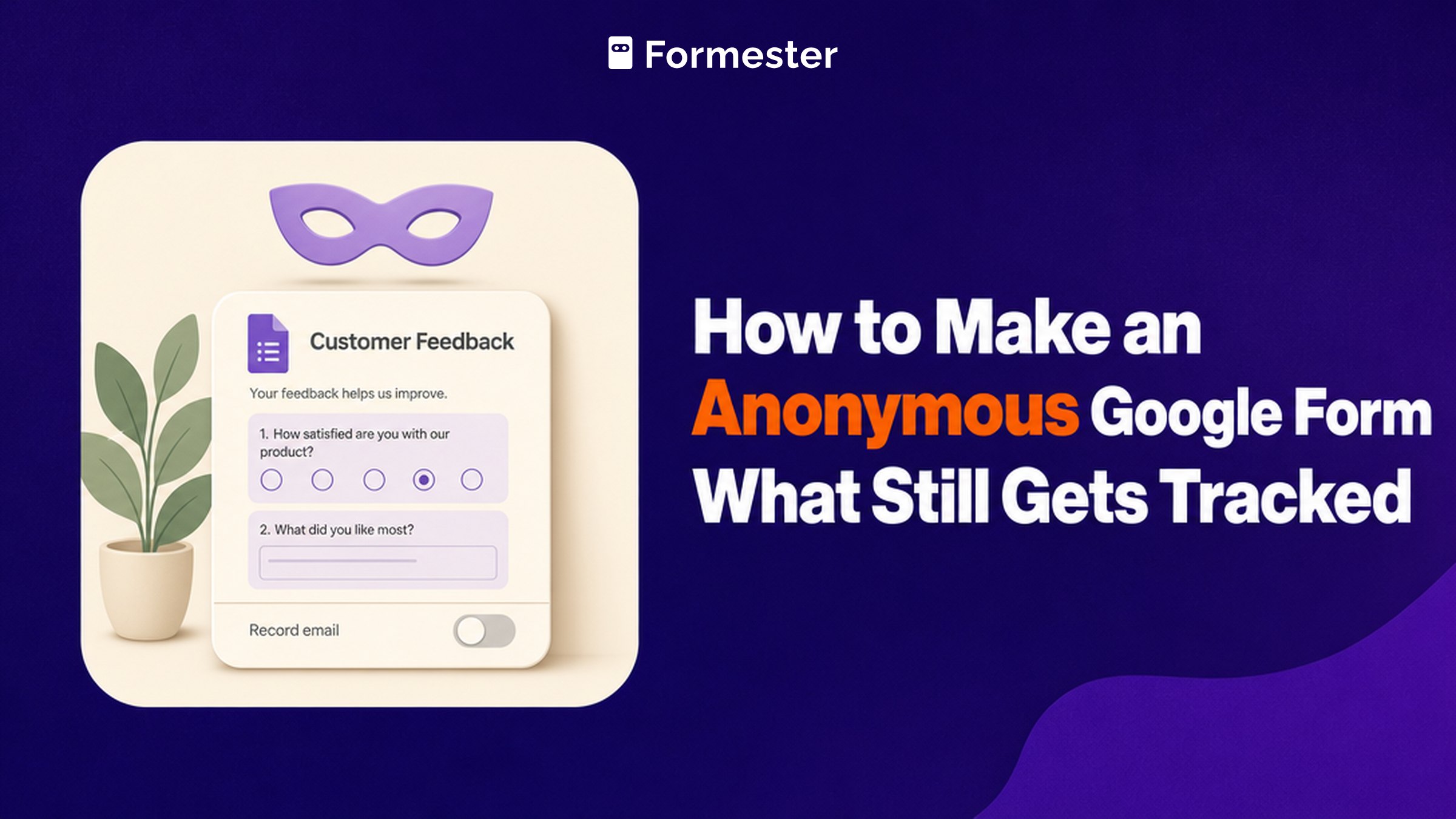
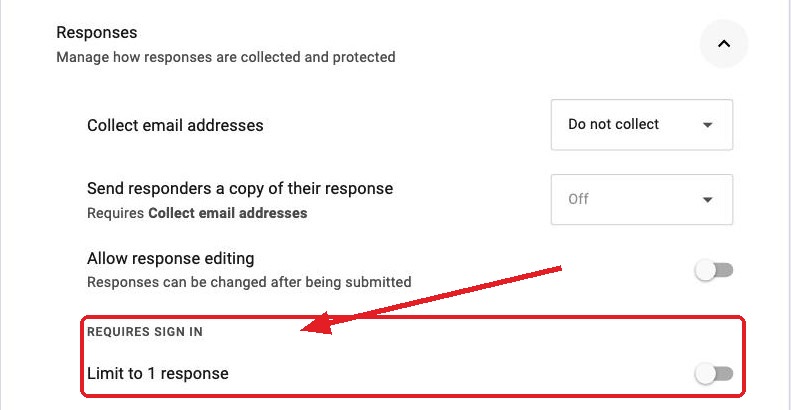
An anonymous Google Form is one where nothing in the response points back to the person who filled it in. No email, no name, no employee ID. To make Google Forms anonymous, turn off email collection in Settings, remove any question that asks who someone is, and submit a test response to check. The setting that is easy to miss is Limit to 1 response. It forces every respondent to sign in to a Google Account, which undoes the anonymity.
Quick answer
- You want the form anonymous: open Settings and expand Responses. Set Collect email addresses to Do not collect and leave Limit to 1 response off. Then delete any question that asks for a name or an ID.
- You want to check it worked: submit the form yourself and open the Responses tab. If there is no Email column there or in the linked Sheet, nothing identifying was recorded.
- You want anonymous and one response per person: Google Forms cannot do both. Limit to 1 response makes everyone sign in to a Google Account, which removes the anonymity.
How do you make a Google Form anonymous?
The settings take a minute. The harder part is the questions you ask and the check at the end.
1. Turn off email collection
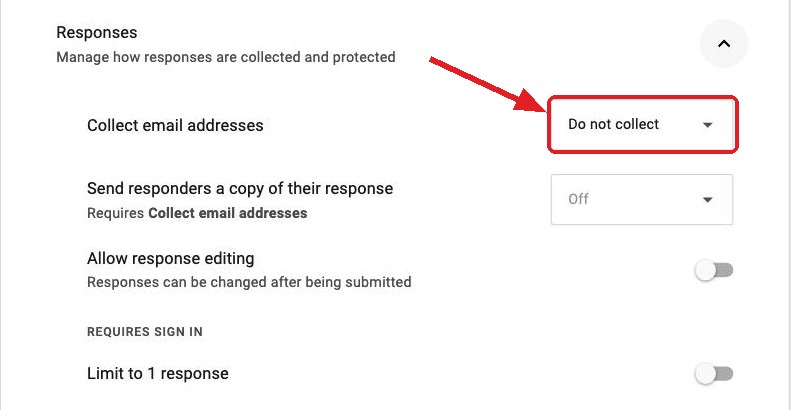
Open the form and click Settings. Expand Responses, then set Collect email addresses to Do not collect. On a new form this is already the default, so you are usually confirming it rather than changing it.
2. Turn off Limit to 1 response
In the same Responses section, under Requires sign-in, make sure Limit to 1 response is off. Google's documentation says respondents must sign in to a Google Account when it is on. You cannot block duplicate responses and keep the form anonymous at the same time.
3. Remove identifying questions
A form can still identify people with email collection off. If the first question asks for a name, the form is not anonymous. Delete anything that asks for a name, an employee ID, a phone number, or a department in a small team. On a team of eight, asking which department someone works in is enough to identify them.
4. Verify with a test submission
Fill in the form yourself and open the Responses tab. If there is no Email column there, and none in the linked Google Sheet, the form is not recording anything identifying. It is the one check that shows what was recorded rather than what was configured.
Which other setting quietly breaks anonymity?
Step 2 covers the sign-in requirement. The other setting that re-identifies people only appears on quizzes. It lives under the quiz options rather than under Responses.
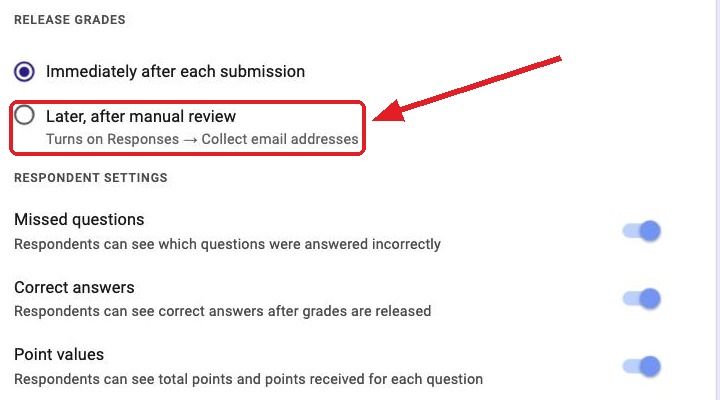
Quiz grades released after manual review. If the form is a quiz and you set Release grades to Later, after manual review, Google turns email collection back on so it has somewhere to send the score. The option says this in small gray text under the radio button. It is easy to miss.
What does Google still track on an anonymous form?
Turning off email collection changes what you see in the Responses tab. It does not change what Google records on its own servers. This is what is and is not recorded:
- The form owner sees no IP address. Google Forms does not log or display respondent IPs to you. There is no column for it in the responses or in the Sheet.
- Google keeps its own logs. Its internal systems may retain data for spam and abuse handling. You cannot see that data, but Google still has it.
- Timestamps are always recorded. On a small team, a submission time can point to one person.
- Free-text answers can identify people. Someone who describes their own project in a comment box has told you who they are.
How do you run an anonymous survey people actually trust?
The settings are only part of it. People only say what they think when they believe the form is anonymous. If a form makes people sign in before they can give feedback about a manager, they hold back, whatever the privacy notice says.
- Say so on the form. Add a line to the description that the survey is anonymous and that you do not collect names, emails, or any identifying information.
- Keep the questions broad. Every demographic question narrows the pool. Two or three of them on a small team can narrow the answers down to one person.
- Do not promise what the tool cannot do. If you have turned on Limit to 1 response, the form is not anonymous. Do not tell people it is anonymous when it is not.
- Share the results. People decide how much to say in the next survey based on what happened after the last one.
When an anonymous survey is the right choice
With an anonymous survey you cannot go back to someone about their answer. Use it where people will only speak up if nobody can tell who said it.
- Anonymous feedback about a manager or a course. People soften what they say when their name is attached.
- Harassment or safety reports. Being able to report without being identified is often the only reason a report gets made.
- Pay and satisfaction surveys. The questions are personal and the answers are only useful as a total across the team.
- Research on sensitive topics. Health, or anything people would not discuss with a colleague.
Where Formester fits
Google Forms makes you choose between blocking duplicate responses and keeping the form anonymous. Formester does not. It can limit each person to one response by IP address, so nobody has to sign in.
Spam protection is separate from identity. Invisible reCAPTCHA and AI spam scoring both work without a respondent account. You can also restrict the form to the domains you list, or start from a survey template instead of stripping identifying fields out of a blank form.
Anonymous, and one response per person
Limit each person to one response by IP address, with no sign-in and no email collected. Spam protection works without identifying anyone.
Try Formester freeFree forever · No credit card · 56,000+ teams
Related reading
- Create a quiz in Google Forms, where grade release quietly turns email collection back on.
- View responses in Google Forms, the tab where you confirm nothing identifying was recorded.
- CAPTCHA for Google Forms, for keeping an open anonymous form free of bot submissions.
- Make a questionnaire in Google Forms, for structuring the questions themselves.