
Google Forms has no export-as-PDF button. What it has is a print dialog, and five different places to open it from. Which one you pick decides whether you end up with a blank questionnaire, a chart summary, or one person's answers.
Key facts
Google Forms has no Save as PDF button. Every route goes through your browser's print dialog, and which PDF you get depends entirely on which screen you print from: the blank form, the response summary, one question, or one person's answers.
- Export buttons in Google Forms: none. Printing is the only built-in route
- 5 different PDFs are reachable, and printing from the wrong screen is the usual mistake
- Responses also export as CSV from the Responses tab under More (Google Docs Editors Help)
- Respondents cannot generate their own PDF. Nothing on the confirmation screen offers one
- The PDF ignores your theme. Colours, header image and fonts do not survive the print view
Every route ends the same way: open a print dialog, then set the destination to Save as PDF. The only decision is where you print from. The form editor gives you the blank form. The Responses tab gives you the summary, every response, or one person's.
Which PDF are you actually trying to make?
Find the row that matches what you are trying to produce, then jump to the steps.
| Route | What the PDF contains | Use it for |
|---|---|---|
| The blank form | A copy of the questions with no answers | Handing out a paper version, or filing the questions |
| The response summary | The charts and aggregate counts from the Summary tab | A one-page readout for a meeting |
| One question | Every answer given to a single question | Circulating one question's results without the rest |
| Every response | One page per submission in a single document | An archive of the whole response set |
| One person's response | A single respondent's full submission | Sending someone a copy of what they submitted |
1. How do you save the blank form as a PDF?
Produces a copy of the questions with no answers. Use it for handing out a paper version, or filing the questions.
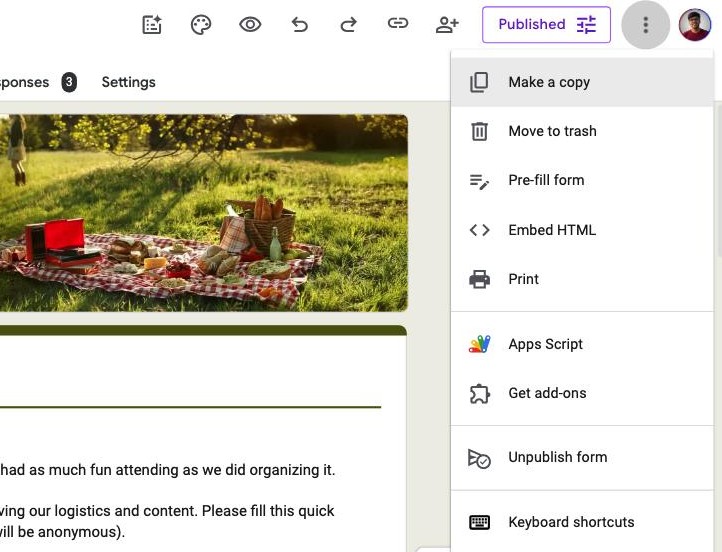
- Open the form in the editor.
- Click the three-dot menu, top right.
- Choose Print.
- In the print dialog, set the destination to Save as PDF.
Where it stops. Header images and theme colours often render differently from the live form, and long multiple-choice lists can break across pages awkwardly.
2. How do you save the response summary as a PDF?
Produces the charts and aggregate counts from the summary tab. Use it for a one-page readout for a meeting.
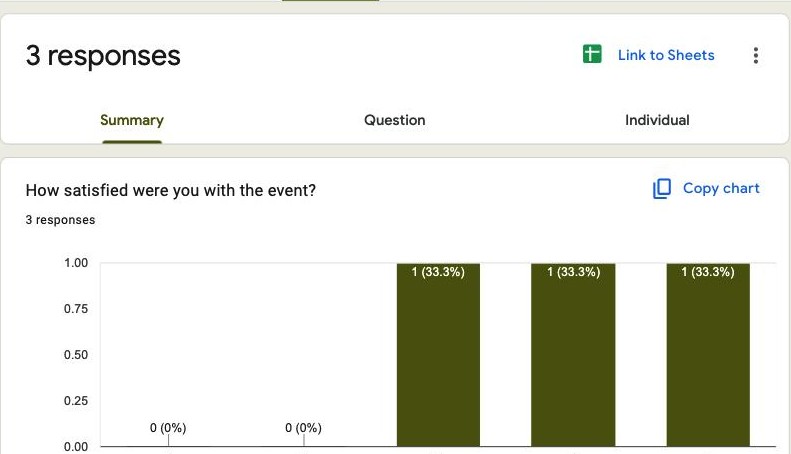
- Open the Responses tab and stay on Summary.
- Print the page from your browser with Ctrl+P, or Cmd+P on a Mac.
- Set the destination to Save as PDF.
Where it stops. You get Google's charts as drawn, with no control over which questions appear or how they are ordered, and browser page furniture can come along with them.
3. How do you save one question as a PDF?
Produces every answer given to a single question. Use it for circulating one question's results without the rest.
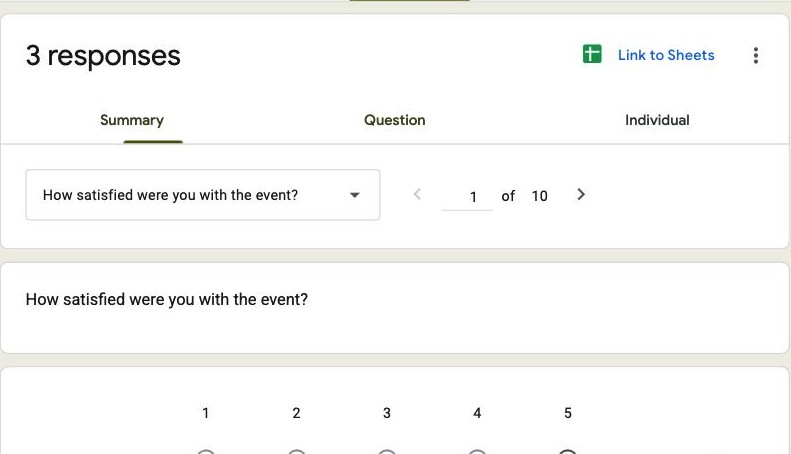
- Open Responses, then the Question tab.
- Use the arrows to reach the question you want.
- Print the page from your browser and choose Save as PDF.
Where it stops. The browser prints what is on screen, so you may capture surrounding page furniture along with the question.
4. How do you save every response as a PDF?
Produces one page per submission in a single document. Use it for an archive of the whole response set.
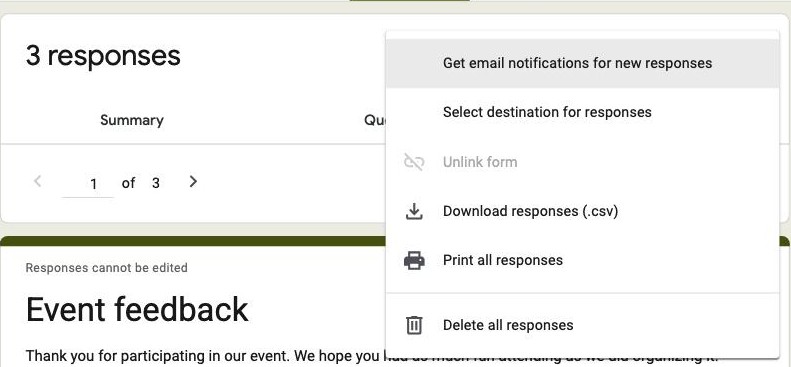
- Open the Responses tab.
- Open the three-dot menu and choose Print all responses.
- Choose Save as PDF in the print dialog.
Where it stops. With a few hundred submissions this becomes a very large document, and there is no way to filter which responses go in.
5. How do you save one person's response as a PDF?
Produces a single respondent's full submission. Use it for sending someone a copy of what they submitted.
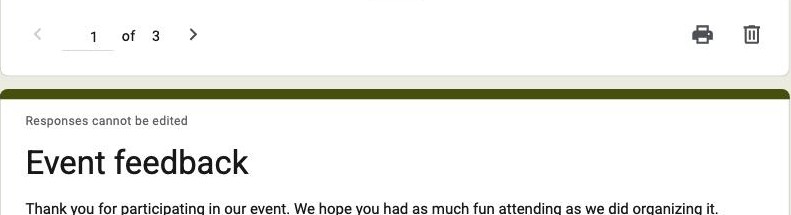
- Open Responses, then Individual.
- Page to the submission you want.
- Click the print icon above the response, then Save as PDF.
Where it stops. You reach it by paging, so pulling one response out of hundreds means clicking through or finding the row in the linked Sheet first.
Want a real PDF per response? Formester generates a formatted PDF for every submission and can email it to the respondent automatically.
Why does the Google Forms PDF look nothing like the form?
This is the complaint behind most searches that end up here. You are not exporting a document, you are printing a web page, so the PDF is whatever your browser makes of the page at print width.
- Images shift or drop. Header images and in-question images are laid out for a screen, not a page.
- Theme styling flattens. Your colour and font choices largely disappear, because print styles override them.
- Page breaks land mid-question. Nothing keeps a question and its options together.
- No branding of your own. There is no logo, header or footer to add, so the output never looks like a company document.
Printing to PDF from a desktop browser rather than a phone gives you the most control, and Chrome's More settings panel lets you turn background graphics on, which recovers some of the colour.
Can respondents get their own PDF?
Not from Google Forms. A respondent can never generate a PDF of what they submitted, and the closest Google offers is a response receipt, which is a plain email of their answers rather than a document.
To switch receipts on, the form has to collect respondent emails first: open Settings, turn on email collection, then enable the response receipt option. Everyone who submits after that gets their answers by email. It is text in an inbox, not a file they can file or forward as a record.
If a downloadable copy per submission is the actual requirement, that is the point where the print dialog stops being the answer.
Why Formester's PDF export is the better choice
A real document per submission instead of a printed web page.
- Each response exports as a formatted PDF, one at a time or in bulk from the Submissions tab (Business plan)
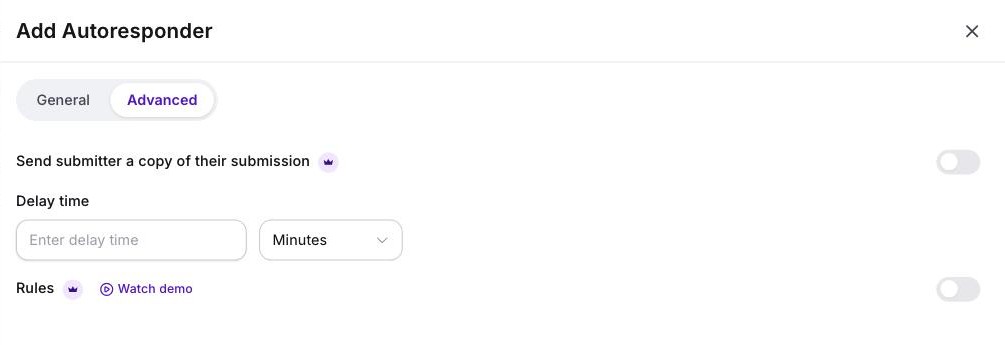
- Turn on the Autoresponder and the PDF attaches itself to the respondent's confirmation email, so they keep their own copy without asking
- Go the other direction too and turn an existing PDF into a fillable form, rather than rebuilding it question by question
- Start from a document-shaped template, like the agreement templates, when the output matters as much as the answers
Related reading
- View responses in Google Forms - the five places responses live, and which tab to print from.
- Summary analytics - charts per question without printing anything.
- Google Forms alternatives - for when document output is the requirement, not an afterthought.