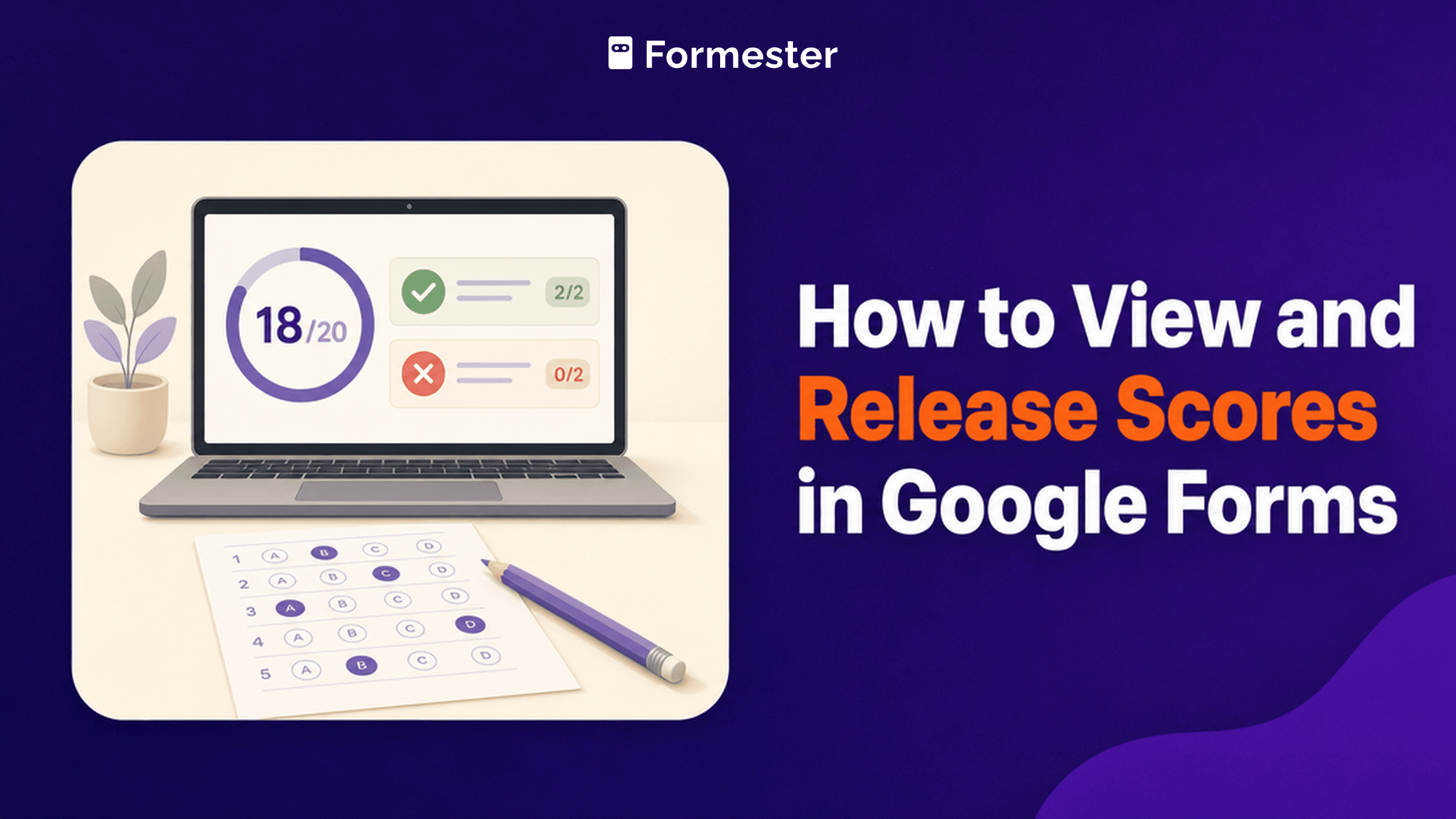
You built the quiz. The responses are in. Now you want the scores, and Google Forms has hidden them in three different places.
There's also one setting that decides whether your respondents ever see their own score. Pick the wrong option when you build the form and every score goes out the second someone hits submit, before you've checked a single answer.
Scores live under Responses, in three tabs. Summary gives you the class picture. Question marks one question across everyone. Individual shows a single person's paper. Whether they see their score is a separate setting, Release grades, in Settings.
First, the form has to be a quiz
Google Forms won't calculate a score unless quiz mode is on. A plain form collects answers and stops there. That's why people open Responses looking for scores and find nothing but a list of submissions.
- Open the form and click Settings.
- Turn on Make this a quiz.
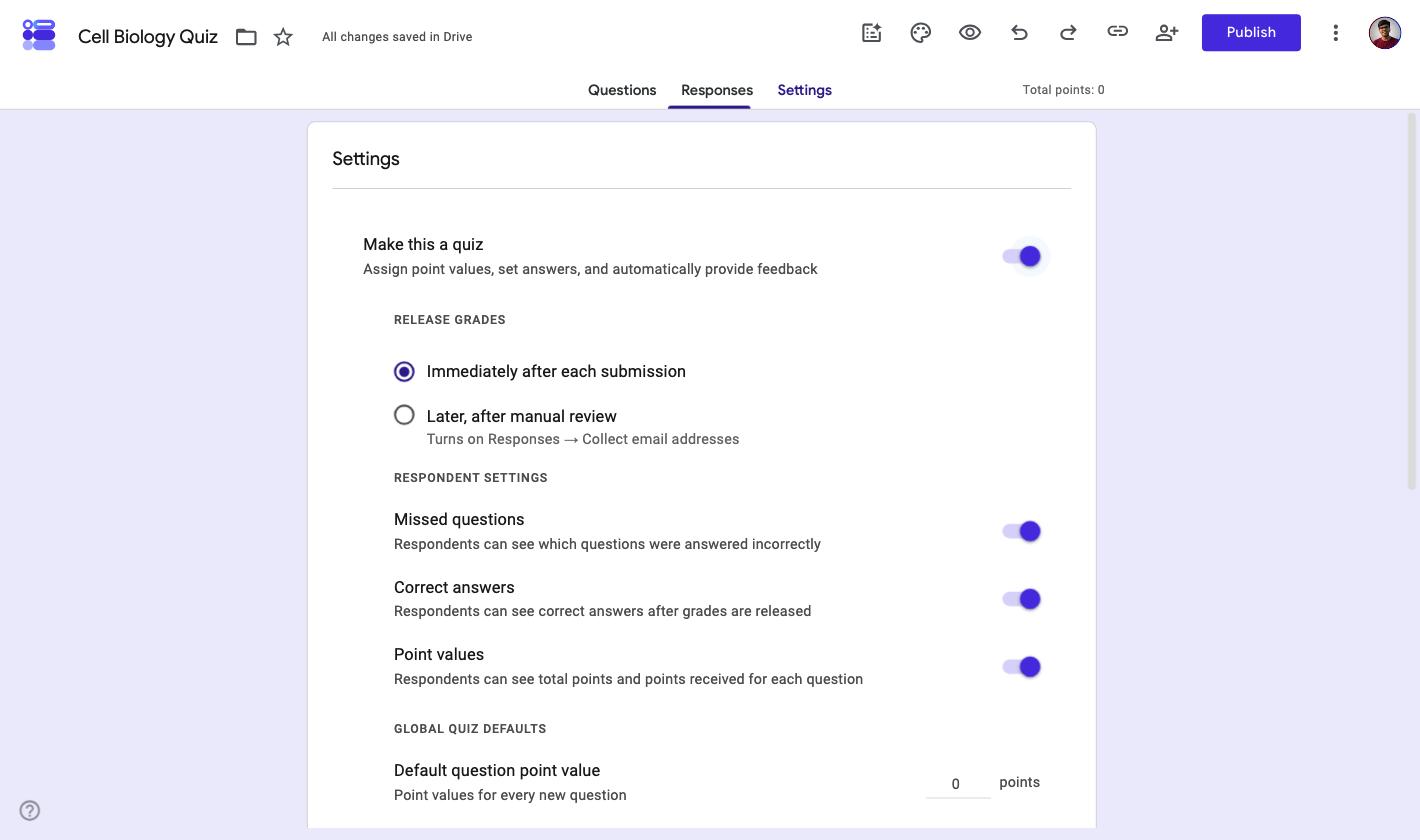
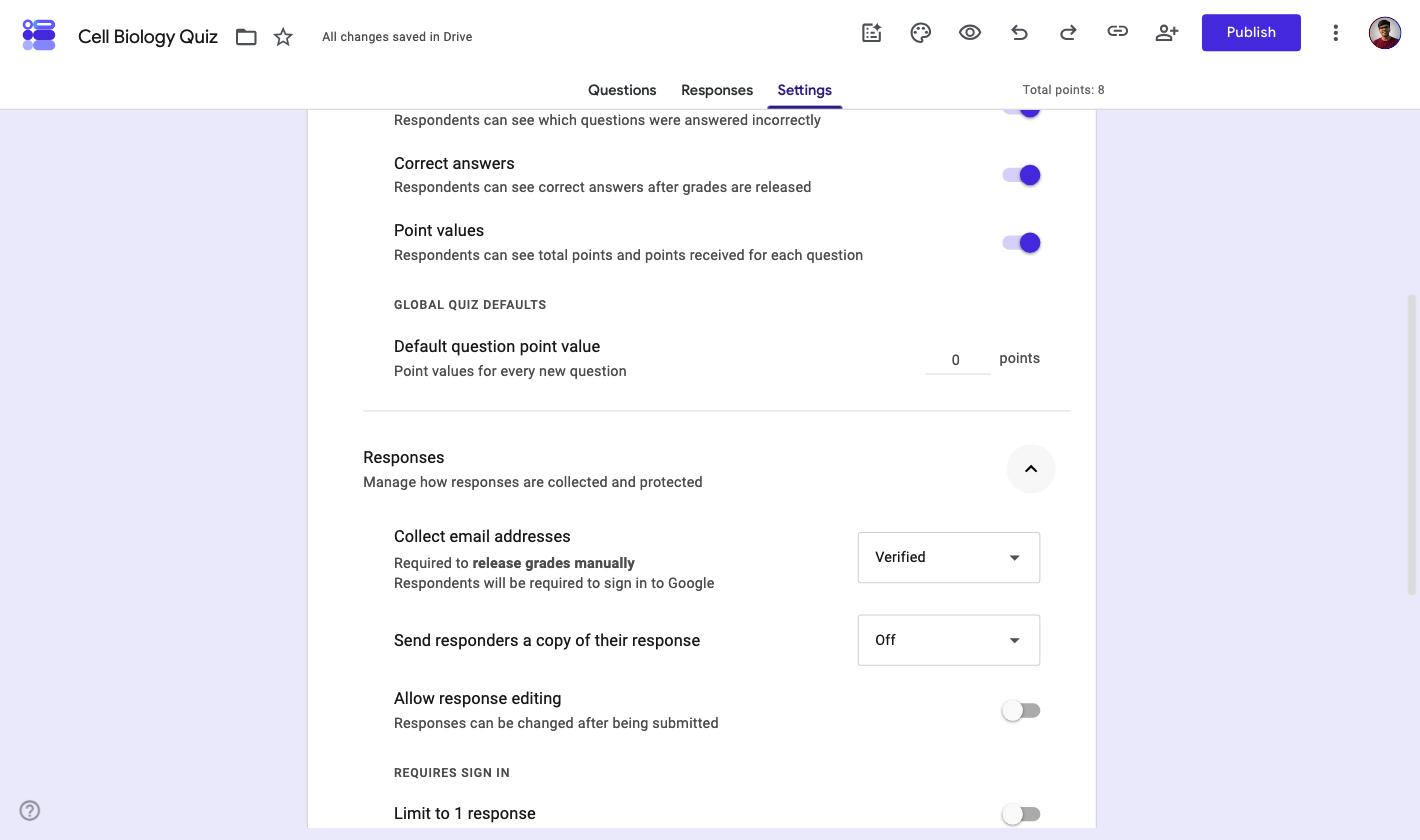
One choice here matters more than it looks. If you decide to hold scores back for review, Google switches on Collect email addresses for you and sets it to Verified.
Verified means everyone has to sign in to a Google account. That's fine in a school on Workspace. It quietly locks out anyone who doesn't have a Google login.
If your respondents are the public, switch it:
- Open Settings and expand Responses.
- Set Collect email addresses to Responder input.
They type an address instead of signing in, and manual release still works.
Building the quiz itself is a separate job. If you're starting from an empty form, our walkthrough on how to create a quiz in Google Forms covers question setup.
Set the answer key and the points
A score is just the sum of the points you attached to correct answers. Nothing shows up until you tell Google which answers are right.
- Click a question, then click Answer key at the bottom left.
- Pick the correct answer.
- Set the point value in the top right.
Add answer feedback attaches an explanation or a YouTube video that appears once grading is done. Worth the extra minute on questions people reliably get wrong.
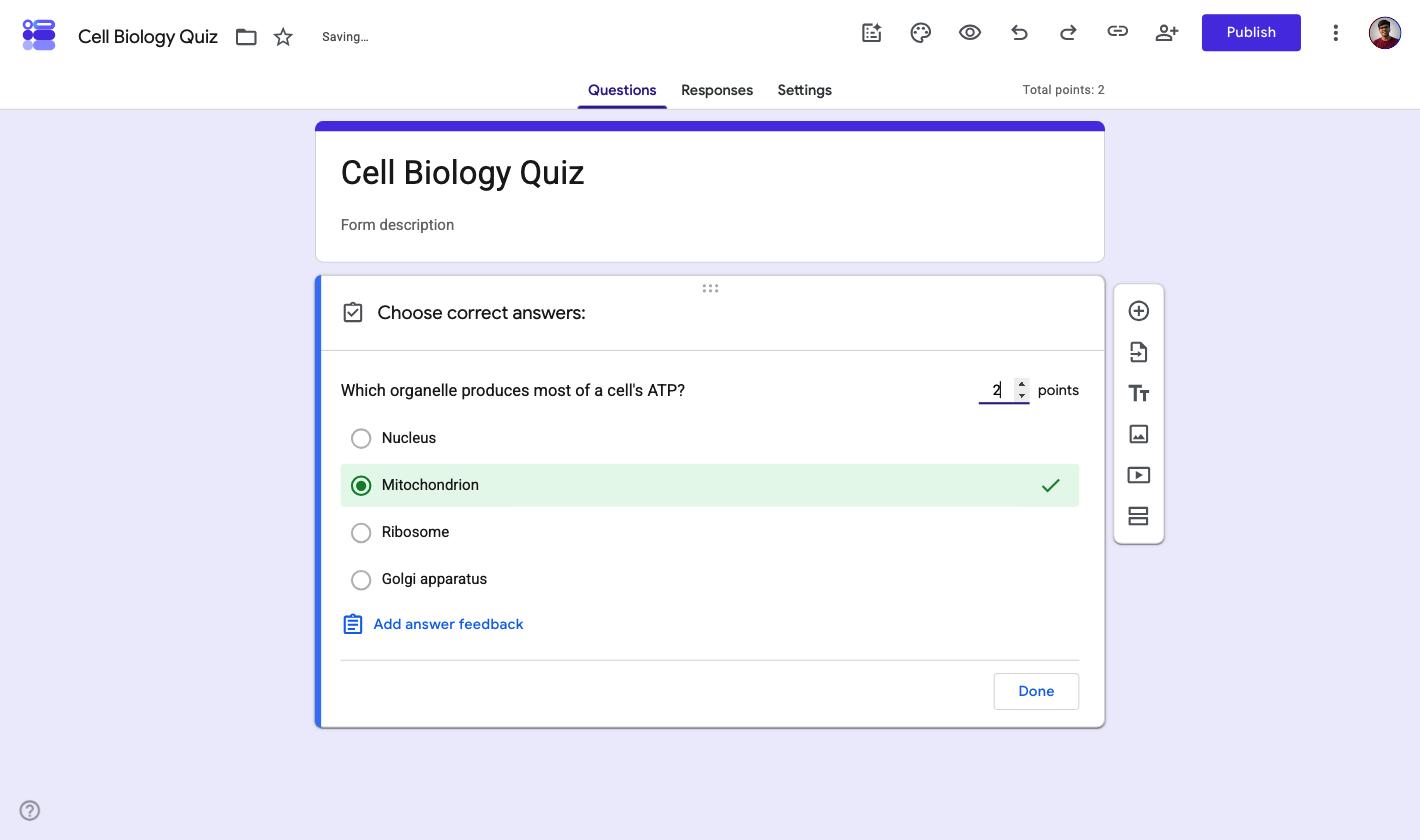
Two things will catch you out. New questions default to 0 points, so anything you skipped contributes nothing to the total.
And the points box only takes whole numbers. Type 0.5 and it'll sit there looking accepted. Reload the form and it's back to 0, with no warning. There are no half marks, so scale up instead: make the question worth 2 and award 1 for a partial answer.
Answer keys don't work on every question type. Six of them grade themselves:
| Question type | Answer key | Grades automatically |
|---|---|---|
| Short answer | Yes | Yes, on exact text match including capitalisation |
| Multiple choice | Yes | Yes |
| Checkboxes | Yes | Yes, every correct box required |
| Dropdown | Yes | Yes |
| Multiple choice grid | Yes | Yes |
| Checkbox grid | Yes | Yes |
| Paragraph, file upload, date, time, linear scale, rating | No | No, you assign points by hand |
You can still put points on any question type, a paragraph answer included. What you lose is the automatic part. Someone has to read it and award the marks.
On a paragraph question the panel even renames itself to "Edit feedback and points", because there's no correct answer to set.
Short answer grading has a trap worth knowing before you send a quiz to thirty people. The match is exact, capitalisation and all. A near miss isn't marked wrong. It's left ungraded.
Answer "photosynthesis" against a key of "Photosynthesis" and you get an empty points box and a quiet "1 ungraded response" label. That person's total under-reports until somebody grades it by hand.
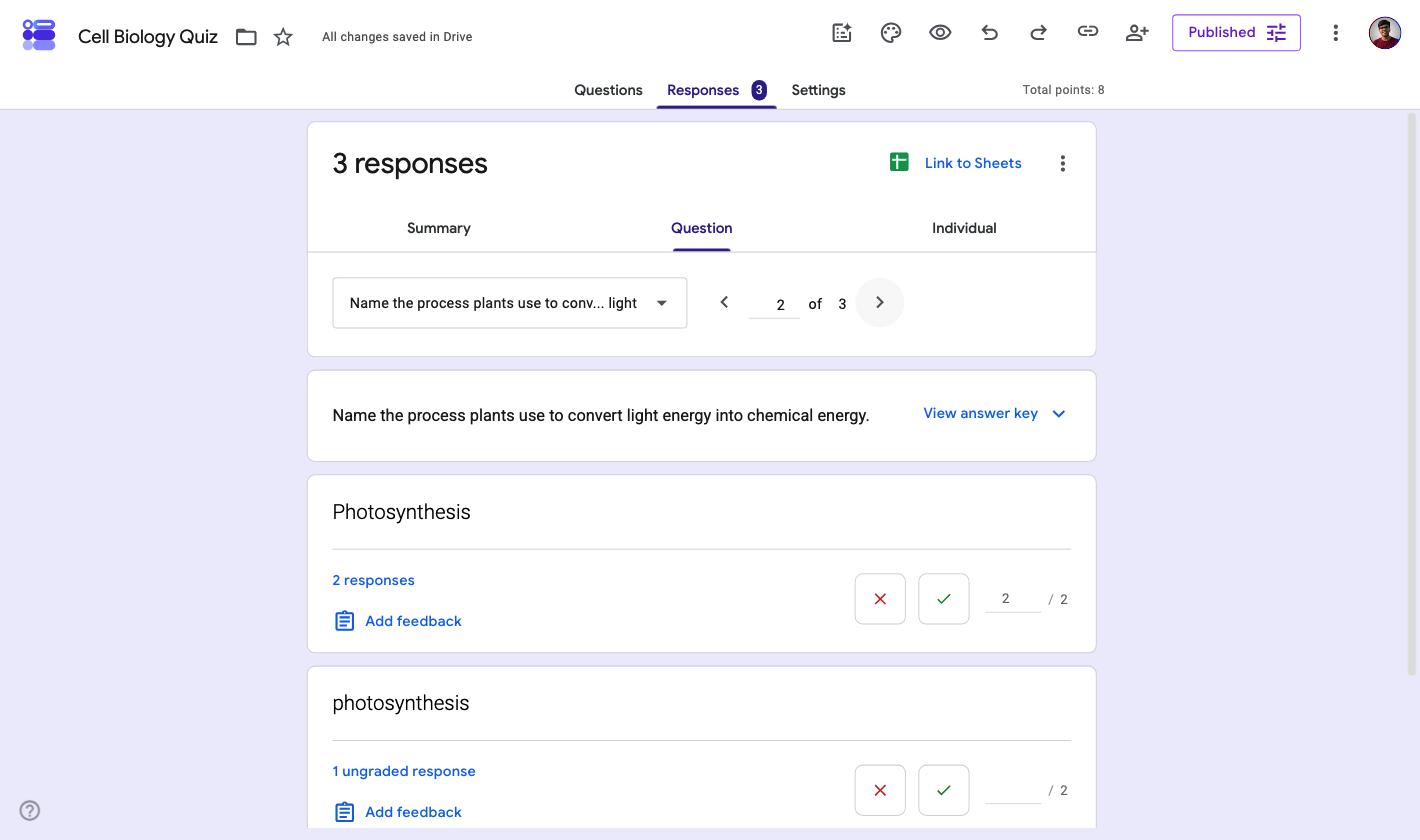
Two ways out. List every spelling and capitalisation you'll accept as separate correct answers, or tick Mark all other answers incorrect so a miss scores a real zero instead of sitting in limbo.
Where scores appear once responses come in
Click Responses at the top of the quiz. The three tabs answer different questions, and picking the wrong one is why grading takes longer than it should.
| View | What it shows | Use it when |
|---|---|---|
| Summary | An Insights panel with the average, median and range of scores, plus a histogram of who scored what | You want to know how the group did at a glance |
| Question | One question across every respondent, with buttons to mark it right, wrong or worth part marks | You're grading written answers and want to stay in one question's headspace |
| Individual | One person's whole submission, with their total and the points per question | Someone queries a mark, or you're releasing scores one at a time |
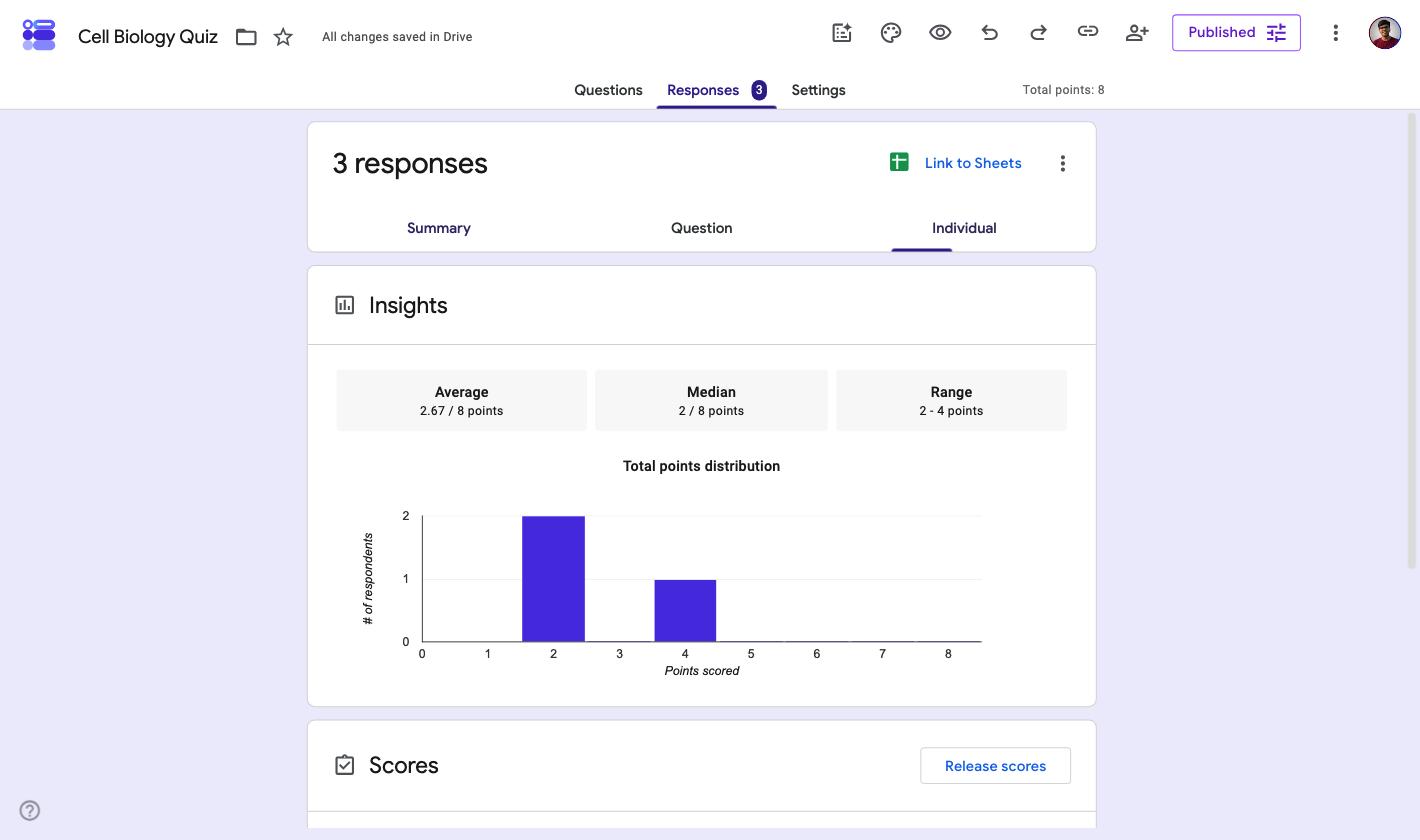
Summary is the one to open first. It reads out the average, median and range against the total, and the distribution chart shows the shape of the class in a glance.
Google also surfaces frequently missed questions here, once a quiz has enough responses for the pattern to mean anything. For the full tour of these tabs beyond scoring, see the five ways to view Google Forms responses.
Release scores automatically after each submission
This is the default, and it catches people out. Unless you changed it, every respondent saw their score the moment they submitted.
To check which mode you're on:
- Open Settings.
- Under Release grades, pick Immediately after each submission.
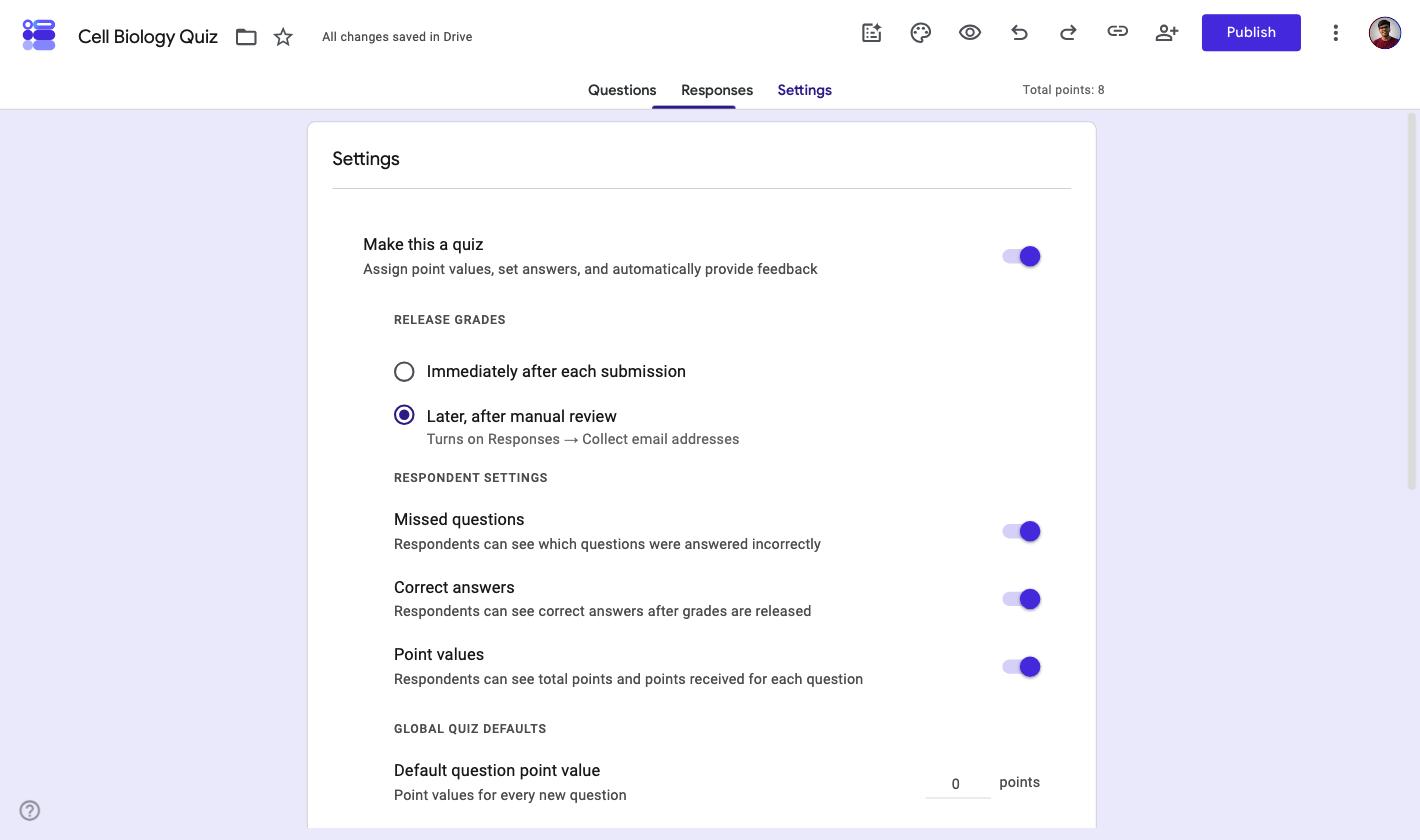
Instant release suits practice quizzes and revision, or anything where the score is feedback rather than a grade. It only works cleanly when every question has an answer key.
A paragraph question in an instant-release quiz shows up ungraded, which reads to the respondent as a zero they didn't earn.
Release scores later, after you review
Pick Later, after manual review in the same setting and Google holds every score until you send it. Respondents see a confirmation that their response was recorded and nothing about how they did.
There are two ways to hand the scores back. For one person at a time:
- Open Responses and click Individual.
- Click Release score at the top right.
- Tick the people you want, then confirm with Send emails and release.
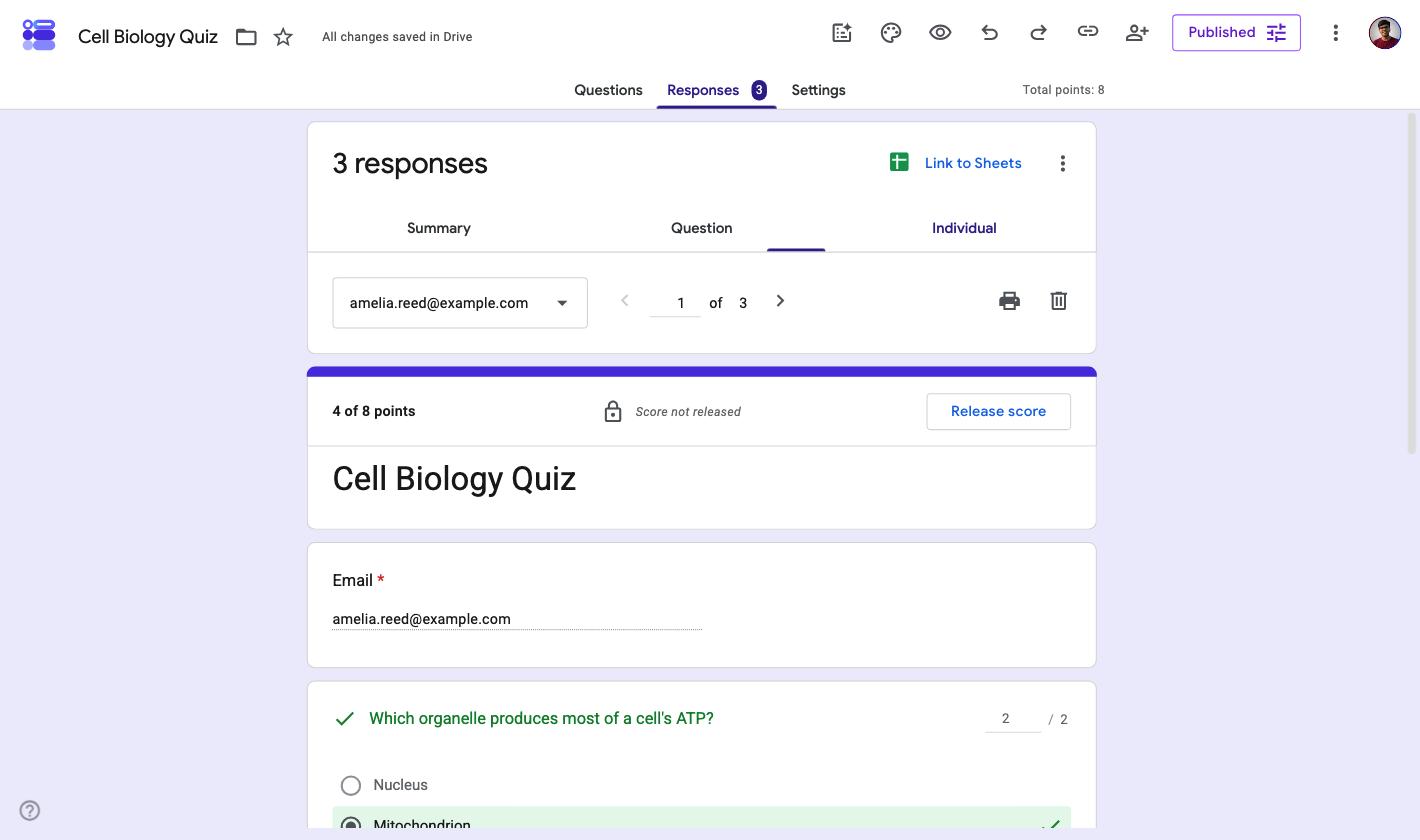
To release in bulk, stay on Summary. The Scores panel lists every respondent with a "Score released" column and a single Release scores button covers the lot.
That button only appears on responses that have an email address attached. If a response came in before email collection was switched on, Google Forms gives you no way to hand that person a score. You can't fix it retroactively.
| Situation | Release mode | Why |
|---|---|---|
| Practice quiz, everything auto-graded | Immediately after each submission | Instant feedback is the point and there's nothing to review |
| Graded test with written answers | Later, after manual review | Paragraph answers need a human before a total means anything |
| Everyone must submit before anyone sees marks | Later, after manual review | Stops early finishers passing answers to the rest of the group |
| Anonymous quiz with no email collection | Immediately after each submission | Manual release needs an email address, so it's your only option |
Want pass marks and negative marking without stitching on an add-on? Formester weights points per question, judges every submission against a pass mark you set, and can print the score on the thank you page.
What respondents see, and what they cannot
What lands on a respondent's screen is controlled separately from the release mode. In Settings, under Respondent settings, three toggles decide what they get:
- Missed questions. Whether they can see which ones they got wrong.
- Correct answers. Whether the right answers are revealed after grades go out.
- Point values. Whether they see the total and the points per question.
They're independent, so you can show someone their total while hiding the correct answers. That's the setup you want if the same quiz goes to a second group later.
Two limits are worth stating plainly, because they're what respondents actually ask about.
Until you release, they see nothing at all. The confirmation page says only "Your response has been recorded", with no score and no hint that one exists. That single line is the honest answer to most "why can't I see my score" searches.
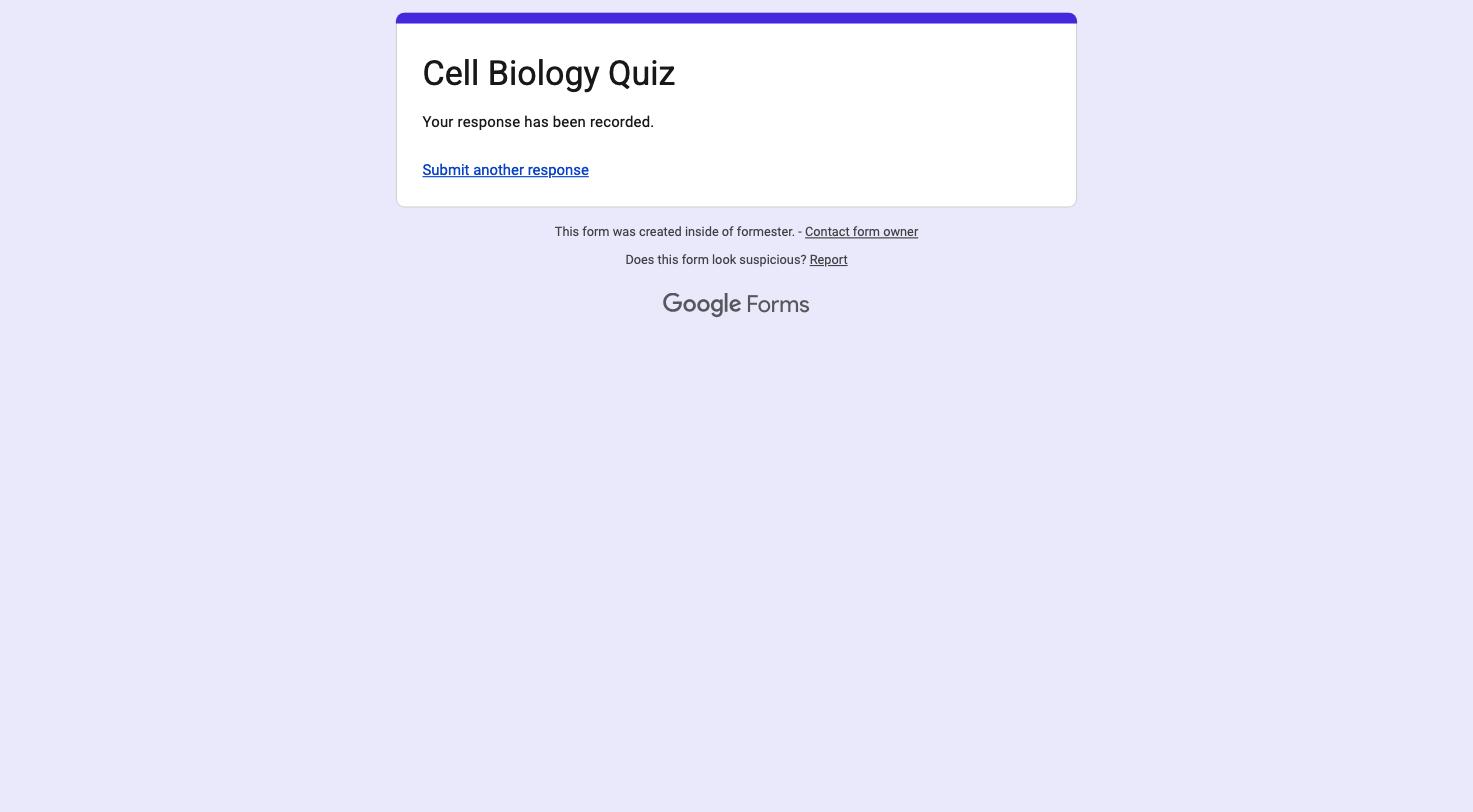
Respondents also can't browse back to an old score. Google Forms emails it or shows it once at submission. There's no student dashboard to log into, so tell people to keep the email.
And you can't see results for a form that isn't yours. Response data belongs to the owner. Unless they gave you editing access or published a summary link, the answer is no. No add-on gets around it.
How to stop showing scores
To take the score away after the fact:
- Open Settings and set Release grades to Later, after manual review.
- Don't release the scores.
New submissions stop showing a score straight away.
To keep the total but hide the working, leave the release mode alone and switch off the respondent toggles for missed questions and correct answers. People still get a number, and your question bank stays unpublished.
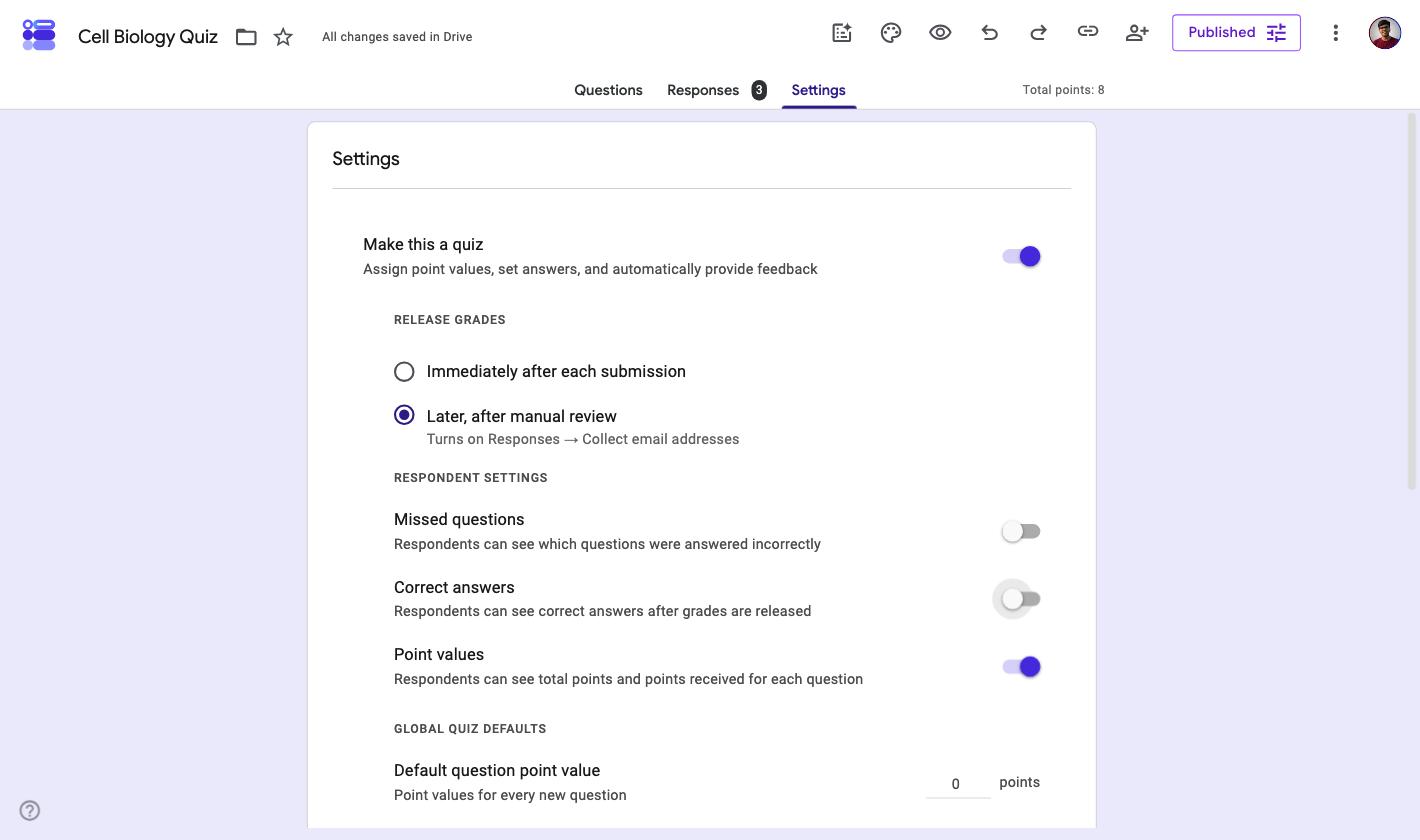
One thing this won't do: scores you already emailed can't be recalled. Changing the setting affects what happens next, not what already went out.
Where Google Forms scoring runs out
For a quick knowledge check, quiz mode is genuinely enough. The gaps show up when the quiz carries weight, like a certification, a hiring screen or an exam with a pass mark.
| What you need | Google Forms |
|---|---|
| Pass or fail threshold | Not available, you compare totals yourself |
| Negative marking for wrong answers | Not available |
| Partial credit on a multi-select | Manual, per response |
| Half marks or decimal points | Not available, the field takes 0.5 then saves 0 |
| Accepting spelling variants on a short answer | Only if you list each one, otherwise it sits ungraded |
| Quiz timer | No built-in timer, add-ons only |
| Different questions per respondent | Shuffle reorders the same questions, there's no question bank |
The timer gap is the one people hit first, and it's solvable inside Google Forms if that's where you want to stay. We wrote up how to add a timer to a Google Forms quiz separately.
Scoring the same quiz in Formester
If your quiz needs a pass mark or negative marking, the scoring model has to be built in rather than bolted on. Formester handles the parts Google Forms leaves to you.
Scoring isn't a toggle you flip on an existing form, which is the bit that trips people up. You choose it when you create the form, so start there.
Step 1. Pick the scored-quiz type
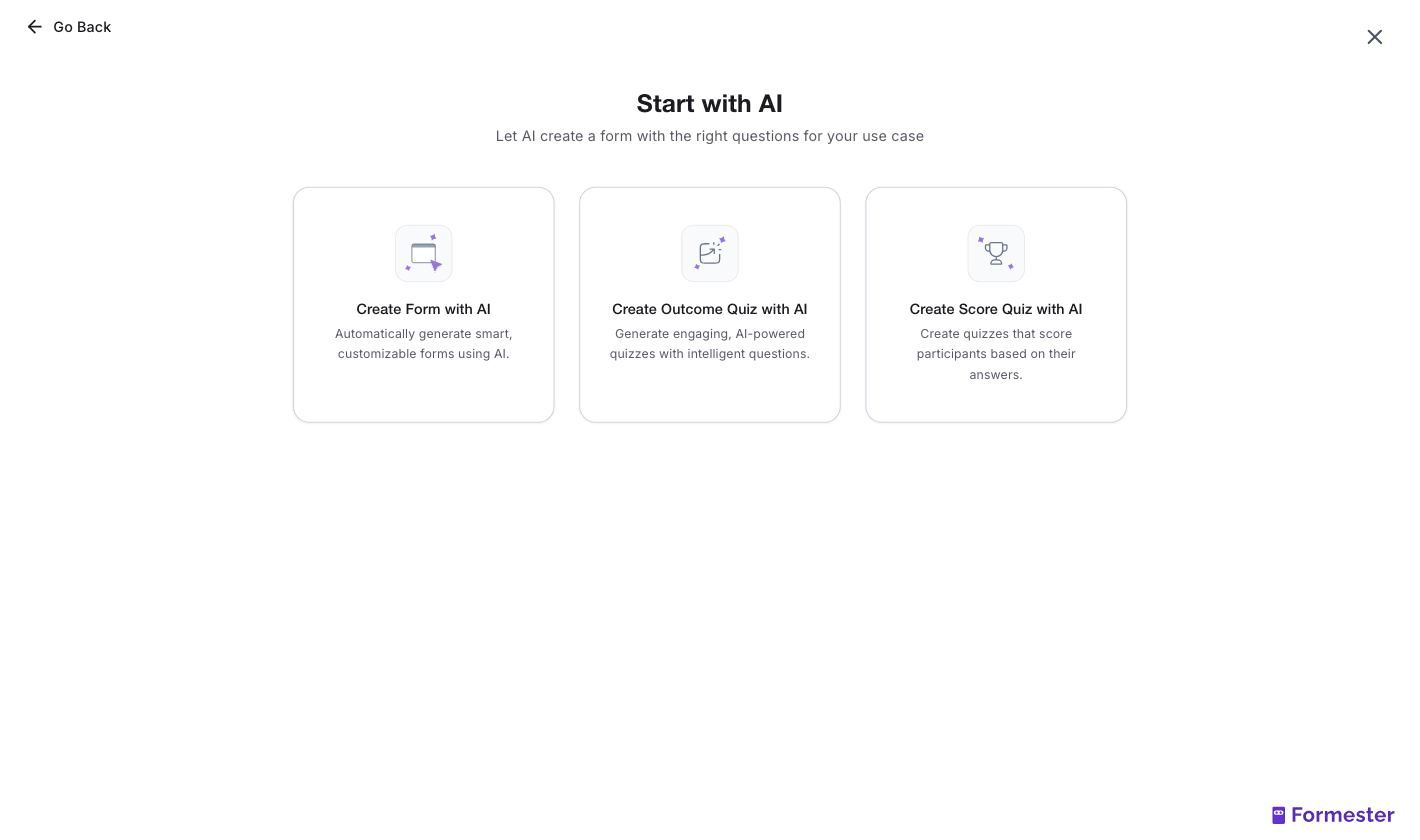
From the dashboard, click Create New Form, then Start with AI. Three options appear. Take Create Score Quiz with AI, not the outcome-quiz one, which routes people to a result instead of scoring them.
Step 2. Describe the quiz you want
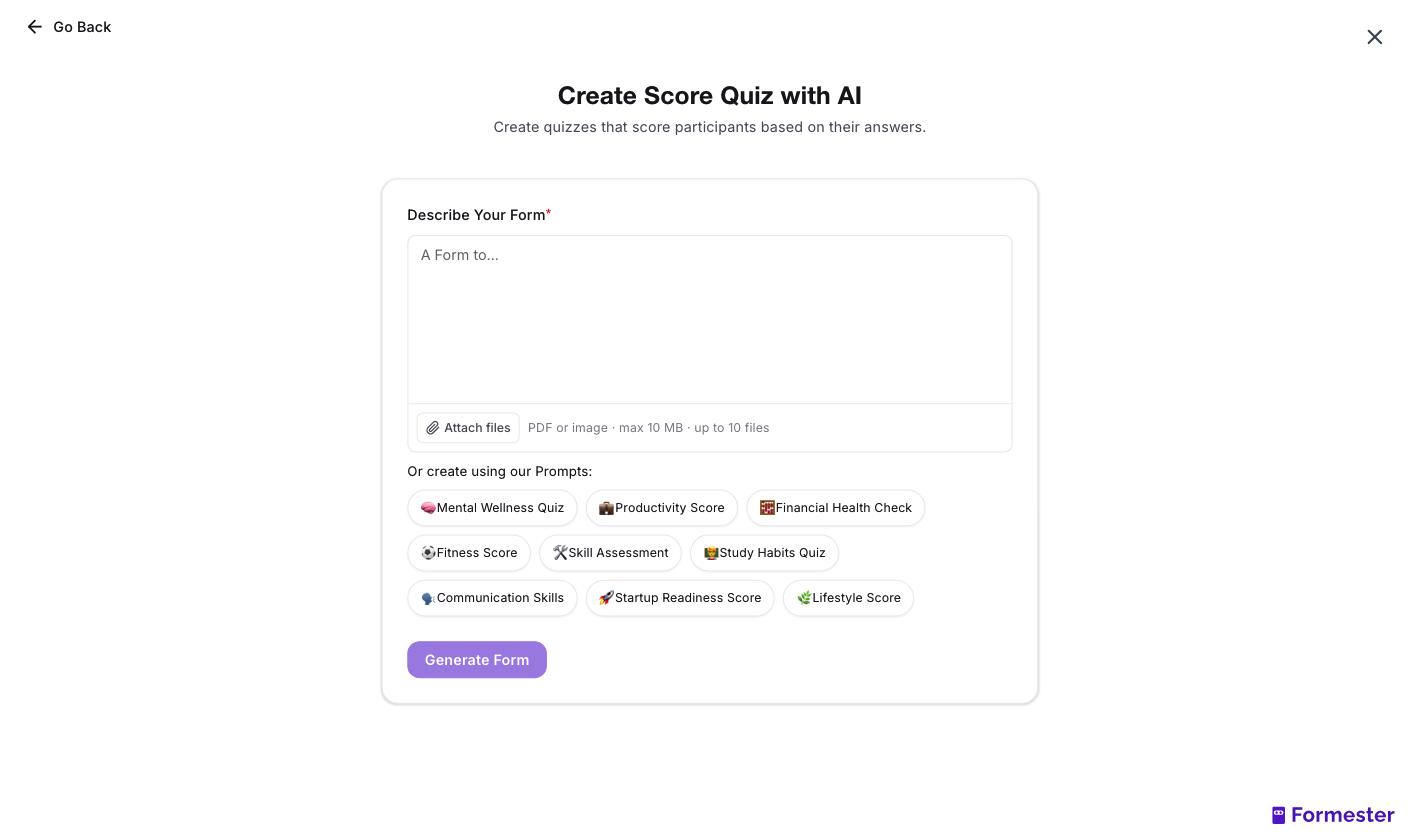
Type what you need in plain English and say how it should be scored. Ours was "a 5 question cell biology quiz for high school students, multiple choice, scored out of 10, with a pass mark". You can attach a PDF instead and let it pull questions from your material.
Step 3. Check what it built
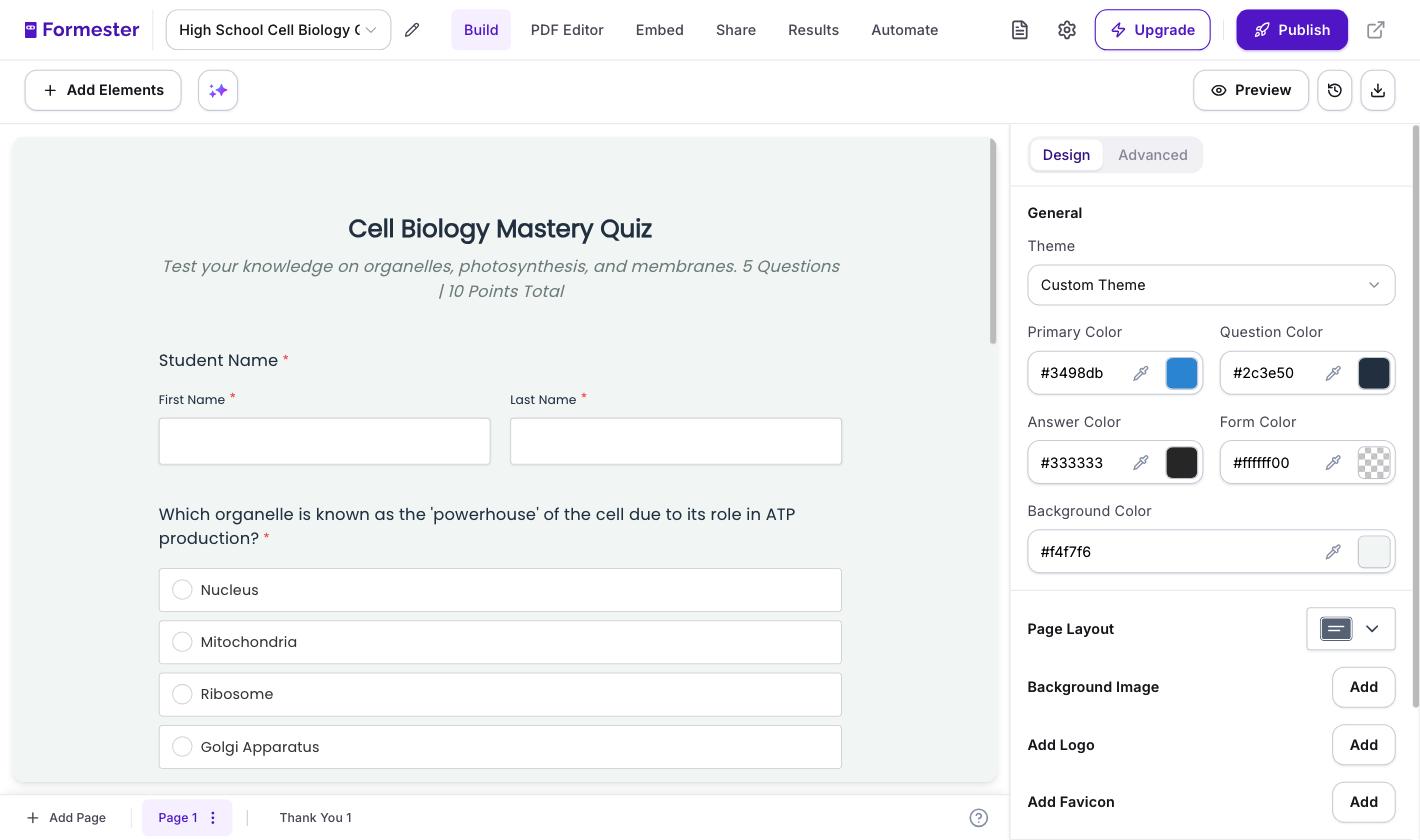
It comes back as a working quiz with the points already assigned. Ours landed as five questions worth 10 points, with the total printed under the title, so a respondent knows what they're playing for before they start.
Step 4. Adjust the scoring, then share it
From here you can reword a question, swap which answer is correct, or change what each one is worth. Then publish and send the link. The pieces that matter for a graded test:
For section-based tests with negative scores and a timer running together, the section-based test walkthrough covers the setup.
You can also start from the AI quiz maker and let it draft the questions, or read the quiz maker feature list before you commit.
None of that makes Google Forms the wrong tool. It's free and everyone already has it. For a ten question check-in that's plenty. Switch when the score starts having consequences.
Related reading
More on scoring, grading and moving quizzes off Google Forms.
- How to create a scored quiz - build the scoring model from scratch, including point weighting and result logic.
- Online test creator - set up a timed test with a pass mark and per-question scoring.
- Turn Google Forms into a student assessment dashboard - push quiz scores into Sheets and chart performance over a term.
- Best online quiz makers for teachers - how the main options compare on grading, timers and question types.
- Top Google Forms alternatives - where each one is genuinely stronger, and where Google Forms still wins.
- Formester for training and assessments - scoring, certificates and reporting for course and compliance testing.